
At the bottom of a service object record you find the heading Service intervals.
On a service intervall you can set:
- how often a service shall be performed
- which parts should be included in the service
- how long the service normally takes
- order type
- service components or link a service template to the service visit.
You can specify several different service intervals with different templates and service parts.
When you perform a service order, you can also add service templates and service points (if you have the permission to create service templates), but your work is made easier if you have already set up service intervals with their points and parts on the service object record.
How to create a service object.
Service object settings you can make for the service interval
Read more about Service object settings. All settings requires admin permission.
Use fixed intervals by default
Fixed service intervals mean that the next service is based on when the previous service was planned instead of when it was performed. If you have chosen this setting, each new service item will have fixed intervals. Of course, you can change this on an individual service object.
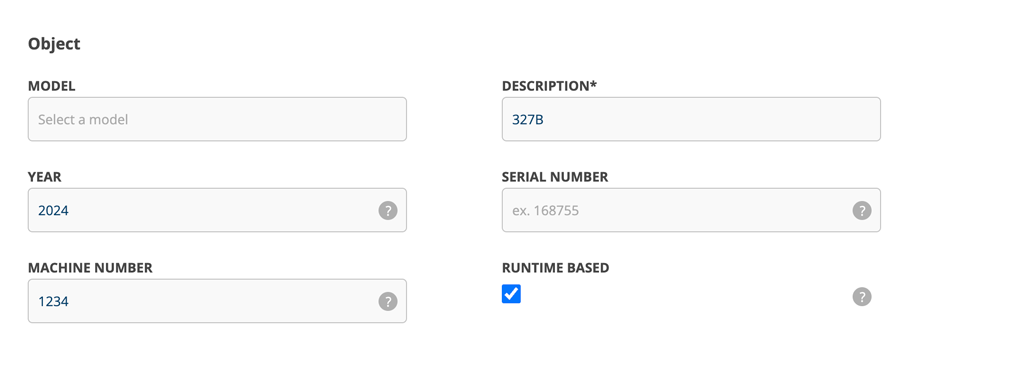
Time-based service objects
This setting allows you to choose whether service on the object should be controlled by operating hours. By default, this option is selected when you create a new service object. A field is added where you enter operating hours per week. Under the service interval, you can choose to enter hours or a day interval.
Without this setting, you can only select days during the service interval.
If you have the setting “Force overlapping service intervals”
Overlapping interval are the default.
A service object can contain several service intervals, but they must overlap, e.g. 2000, 4000, 8000, 24000.
If more than one interval with time interval * (hours) has been specified, only the first interval can have a day interval. If more than one interval with day interval has been specified, no time intervals can be specified. These are the basis for how often and with which parts service orders should be generated.
* is displayed when the object is set as Runtime based.
If you do not have the “Force overlapping service intervals” setting but can set arbitrary intervals
Overlapping intervals are the default. If you want to be able to add intervals that are not overlapping, you need to uncheck the setting Service Object Settings – Force overlapping service intervals. Requires admin permissions.
Free intervals can only be used together with daily intervals and not if the object is runtime-based.
The effect can be, as an example:
An object needs to be serviced 3 times / year. You enter 3 intervals and 3 orders are created. As soon as you perform the first of the three, a new one is created based on the interval performed. So you will always have 3 orders under Next service.
Set a service interval
Click on + Add a service interval.
Name
Give the service interval a distinctive name, such as 1-year service. You will see the name on the service order, so that you always know that you are working on the “correct” service.
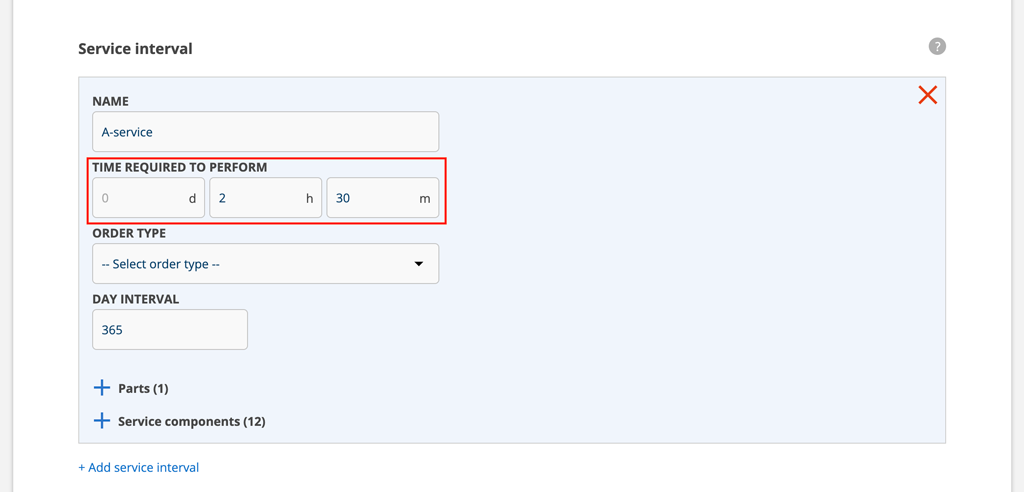
Days required to perform
By entering a number of days here, a booking will adjust in time. For example, if you enter 2 days, the booking in the Planner will automatically be spread over 2 days. If you enter hours and minutes as in the screenshot below, 2 hours and 30 minutes will be booked up.
Select order type
If you have created order types, a field will appear where you select the order type.
Specify time interval or day interval
Fill in hours or days. If you place the cursor in the Day interval field, a box will open where you can enter years or months. Please see examples here. See examples here.
Specify parts and service components per interval
All parts and service components to be replaced need to be specified for each interval.
Parts linked to the service interval
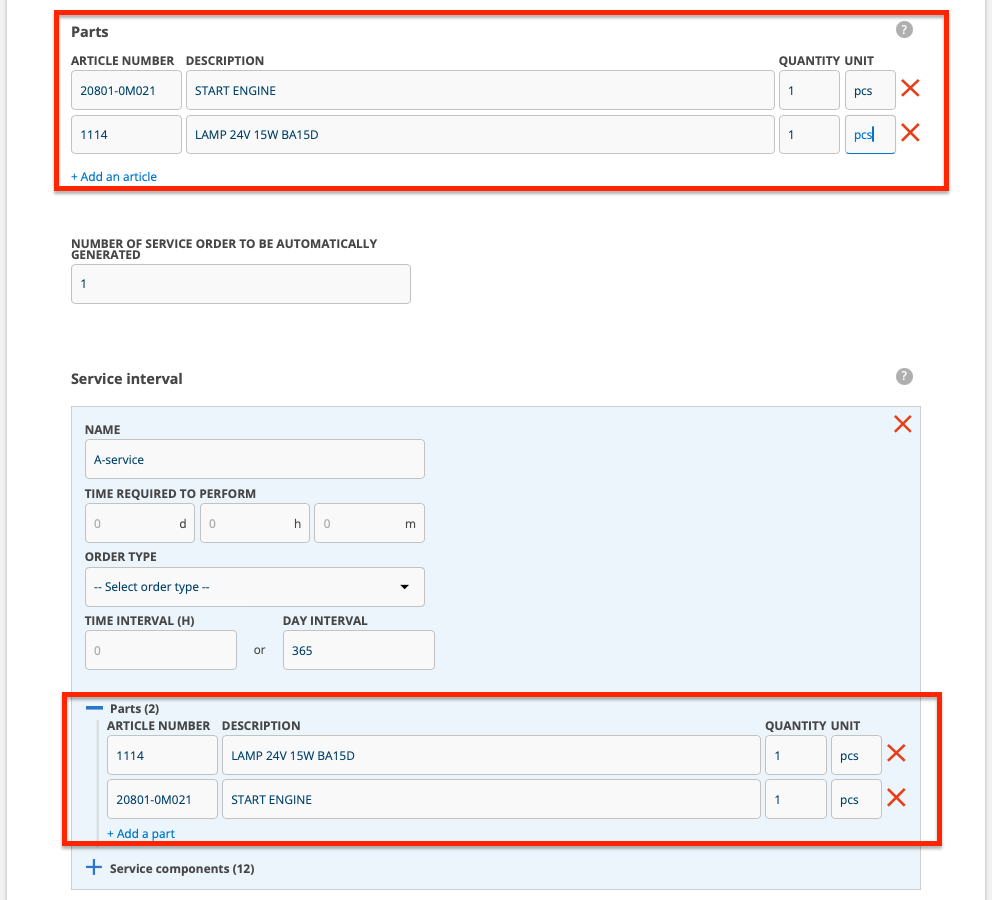
For each service interval you can add parts. Click on + Parts and then + Add a part. Search for the parts that should be included in the service.
The parts you add here also appear under the heading Parts which you can find a little further up.
If you want to remove parts from a interval, do it under the interval – not under the Parts heading (the top box marked in the image below).
Service components connected to the service interval
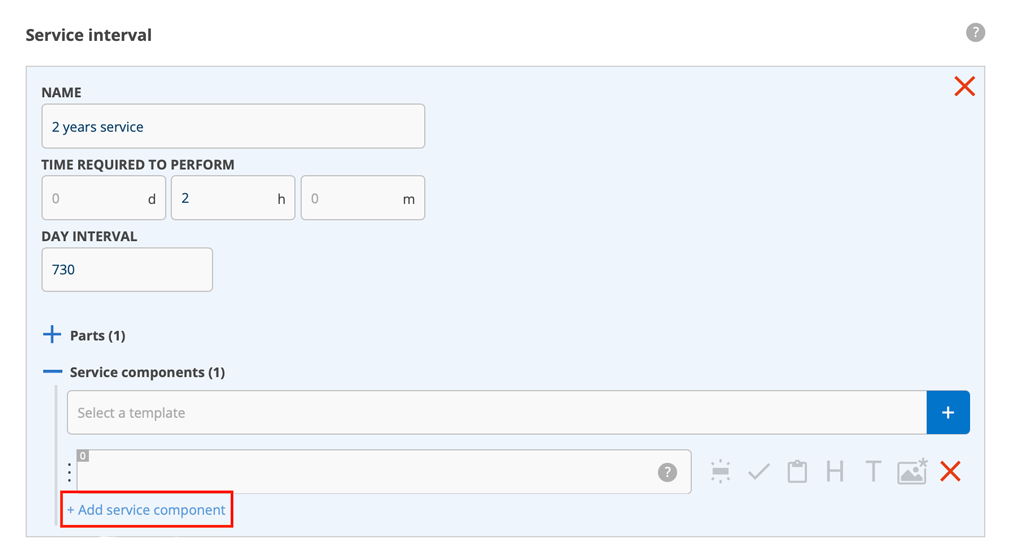
It is a good idea to use service templates to add service components. Place your cursor in the field that says “Select a template”.
Learn how to create a service template here.
- Don’t have a template yet? Do you want to create a new template? Click on the blue box with the cross to the right of the search field (where it says “Select a template”). See image below. A new window will open where you can create your service template. Learn how to create a service template here.
Creating and changing service templates is a user permission. - If you have already added service components and choose to add a template, you will be asked whether you want to add the components from the template to your service points or replace existing service components, i.e. delete your service points and only keep the components from the template you selected.
- If you are not using a template or want to supplement the template with individual service points, click + Add service point. Here you will find information about which features you can choose for your service components.
- You can choose to remove service components from the template you added. Click on the red cross to the far right of the point you want to remove. The removal does not affect the template itself.
If you want to create more service intervals, click + Add service interval.
When you are finished, click Save and the system will ask if it should create service orders according to the service intervals you have set.
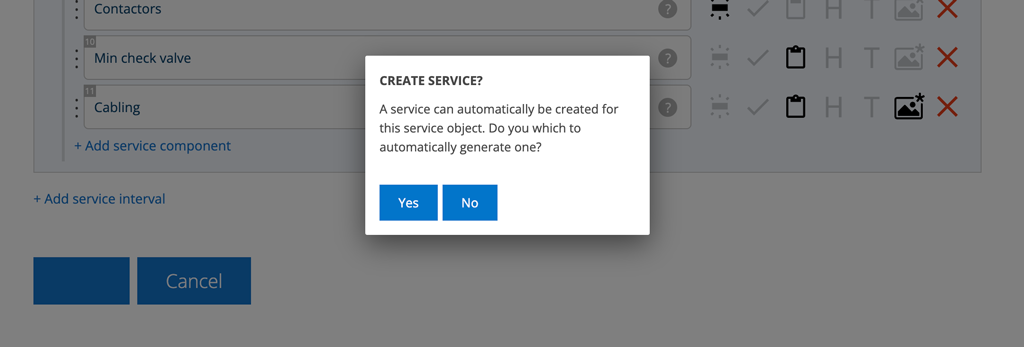
Example 1:
For example, if you have set a service interval that you have named 1-year service (365 days) and a 5-year service (1825 days) that is more extensive, annual services are created for years 1-4 that are identical and a 5-year service that is different.
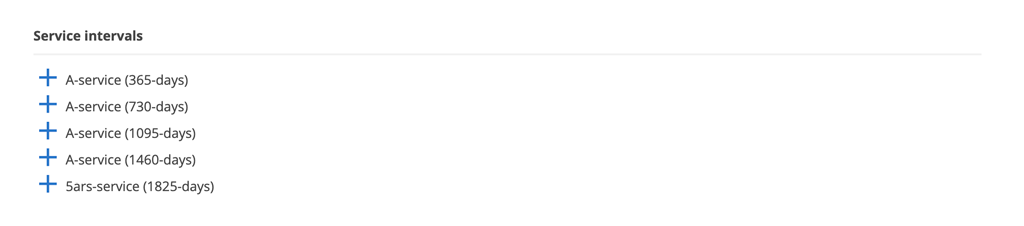
Example 2:
- The object should be cleaned every 90 days.
- Every 180 days you should replace a specific part.
- Once a year, a major service should be performed.
Thus:
- 90 – cleaning
- 180 – part replacement
- 90 – cleaning
- 360 – major service
- 90 – cleaning
You create these intervals:
- 90-day service
- 180-day service
- 360-day service
The system “understands” and creates service orders based on this.
Settings that affect how service orders are generated
| Setting | Location | Purpose | How it works | |
|---|---|---|---|---|
| Force Overlap Service Intervals | Service object settings | Controls how the system handles multiple service intervals when they occur at the same time. | When enabled, intervals must overlap. The system generates orders based on each interval (e.g., one interval and then the next). When disabled, intervals can run independently of each other. Leave this setting disabled if you want separate protocols to be generated independently of each other, even when they are scheduled at the same time. | |
| Service collision time span | Facility | Defines the maximum number of days within which multiple generated orders can be merged into a single order. |
| |
| Number of orders to be generated after service performed | Service object | Determines how many future orders the system generates automatically to support planning. | When interval days overlap, the value represents the total number of orders generated. When the interval days do not overlap the value represents the total of each interval that will be generated (these may be merged into one order based on the collision time span set on the facility). | |
| Interval days | Service object | Determines how many future orders the system generates automatically to support planning. | System Behaviors with Multiple Intervals: Overlapping intervals The system generates orders sequentially e.g. Large service → Small service → Large service Non-overlapping interval The system will generate each interval independently; orders only being merged if the collision timespan allows e.g. Service → Small Service & Service (merged if within collision window). In both cases, the system uses the first interval to determine custom order type. After this, it continues based on the defined interval sequence. Place the most important interval first if you want to define a dominant order type. |
Service interval Scenarios
| Description | Interval 1 | Interval 2 | Overlap setting | Collision | Generation (1 year in advance) | Comment | |
|---|---|---|---|---|---|---|---|
| 1 | 1 Interval | 365 | – | No | 0 | 1 | Collision not needed if you only have 1 interval, unless you wish to merge manually planned work e.g. repairs. |
| 2 | 2 Intervals, same frequency | Yearly (365 Days) | Yearly (365 Days) | No | 30 | 1 | Collision will ensure the 2 interval types occur on the same order, with different protocols. |
| 3 | 2 Intervals, differing frequency where both need to be performed on separate protocols but at the same time. | 6 Monthly (181 days) | Yearly (365 Days) | No | 30 | 2 | System will generate 2 of each type. Intervals must not overlap. |
| 4 | 2 Intervals, differing frequency where each you perform 1, then the other. | 6 Monthly (181 days) | Yearly (365 Days) | Yes | 30 | 2 | Activating the overlap will mean ALL intervals need to overlap regardless of object. Only activate if it applies over all objects/facilities. When you execute an order, two new orders are generated. |
Created by Karen Irwin, Alimak Group

