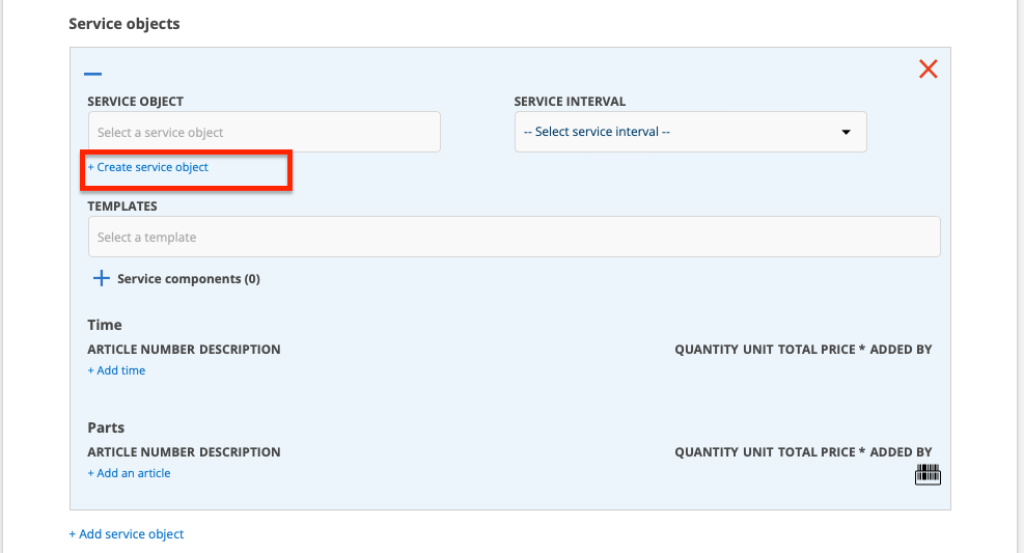
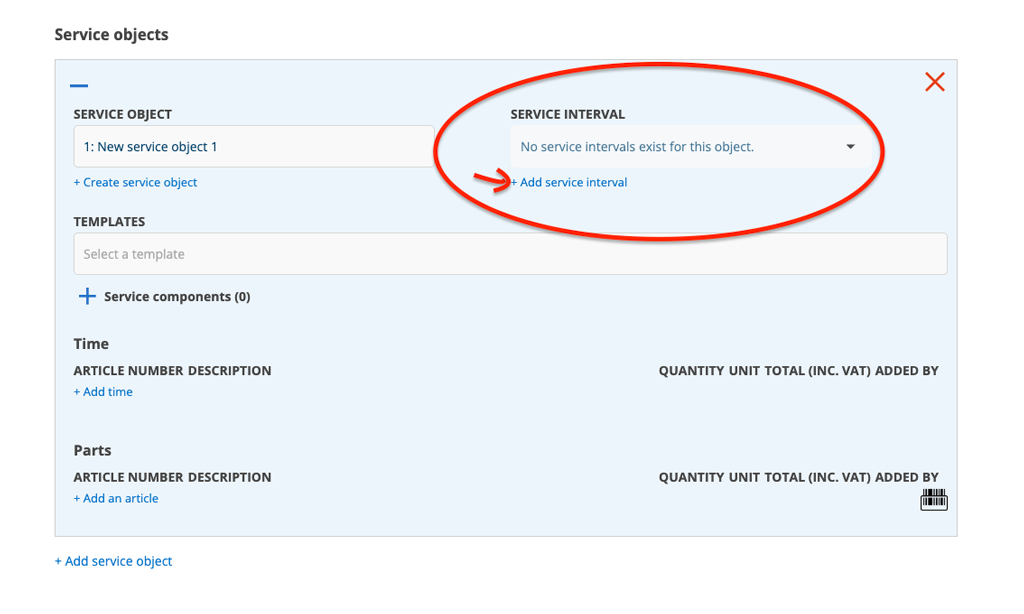
When you create a new service order, you can add a new service object directly and specify service intervals, service points and parts at the same time. All information is saved on the service object record. You have fewer options when creating it in terms of intervals and cannot specify time required to perform and type or specify that the service object should be runtime-based. But you can of course supplement this information later.
To be able to create a service object, you need to have the permission to Edit Service Objects.
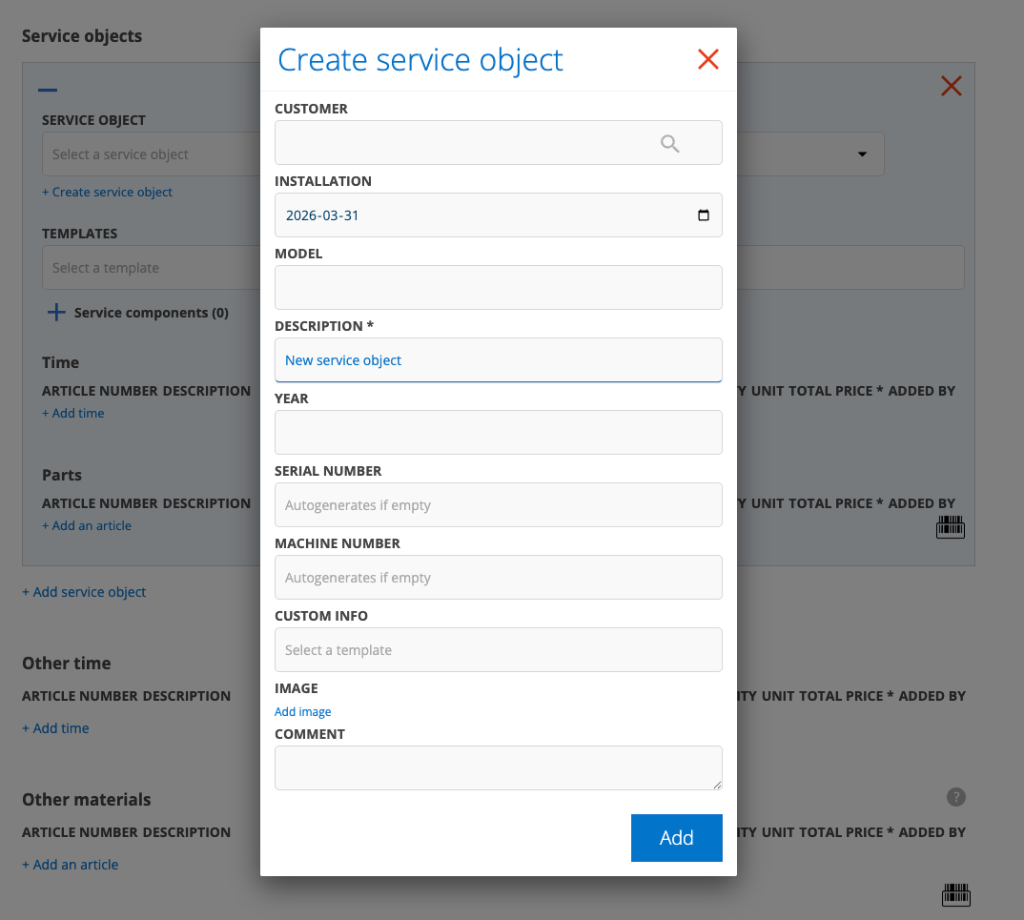
If you select a model
If you have selected a model for the new object and the model has service intervals and parts, the system will retrieve that information. To see this information, you first need to save the service order. When you then click Edit, the information is there and you can choose which service should be performed.
If you don’t choose a model
- Click + Add service object
- Click + Create service object
- Enter information about the object.
- Click Save
- The SERVICE INTERVAL field will now read “No service intervals exists for this object”. Then click + Add service interval. A field will open where you enter the number of days for the interval. The service interval name is named after the number of days.
- Select a service template
- If the service object is to contain parts for the interval, fill these in.
- Click on Save.