
This page contains general information about service objects. For instructions on adding new objects and what information can be added, click on the links below.
In the register entry for a service object, you can see in which orders the object is used and find all of the object’s orders, service protocols, agreements and any child-objects.
You can also quickly add orders and agreements to the object, add a reading, clone, upload documents, etc. Here you can also find the time for previous and upcoming service, the address of the object and uploaded documents.
Here you can also download the QR code if you want to print one and place it on the object.
You can add a new service object in several different ways
> :This article lists all the different ways to add a service object
What information can I add to a service object?
> Here you find information concerning all fields on a service object record.
What settings can be made?
Many fields are ones that you choose to activate yourself, to make the function adapted to your specific business.
> Information about all Service object settings and what effect they have.
How do service intervals work?
In the article How to set service intervals? you find instruction on how to create and add service intervals.
Service object statuses and Tags
Once you have saved the service object, you can also select the status of the service object and add tags.
Learn more about service object statuses.
Add Self-check
If you want to link self-checks directly to the service object, click + Add self-check. The list of your self-checks opens. Self-checks here can be used to perform, for example, daily inspections or a check after rental. The date of the self-check performed is added to the list of self-checks.
When a self-check is completed, you sign. The self-checks are listed with the date they were completed.
Learn more about self-checks here.
Regarding the “buttons” at the bottom
Edit
Click Edit to change the service object information.
Information about a service object can also be changed on orders. Click on the pencil next to the object’s name and a popup will open where you can change, complete and upload images and documents. The uploaded files are saved on the service object.
Generate service / Update service
If no service has been generated, for example because you answered no to the question whether the system should generate service, you can click the Generate service button.
If there is an upcoming service but you are making changes to the object or service, the button is called Update service instead.
You can also use the collection function to update service on multiple objects at the same time.
Why is there a red exclamation mark next to Service Objects?
The system will add an exclamation mark in the menu on Service object if there are objects without a next service that should but not have a next service. Learn more about that here.
More
Clone
Used when you want to copy a service object.
Read more about cloning a service object.
Add to order
Click Add if you want to add a new order, submit a fault report, create an agreement or quote directly on the service object.
When you add an order from the object, the contact person is also sent to the order.
Inactivate
By inactivating a service object, it will no longer appear in lists, but the history will be saved. You do this, for example, if a service object has been scrapped.
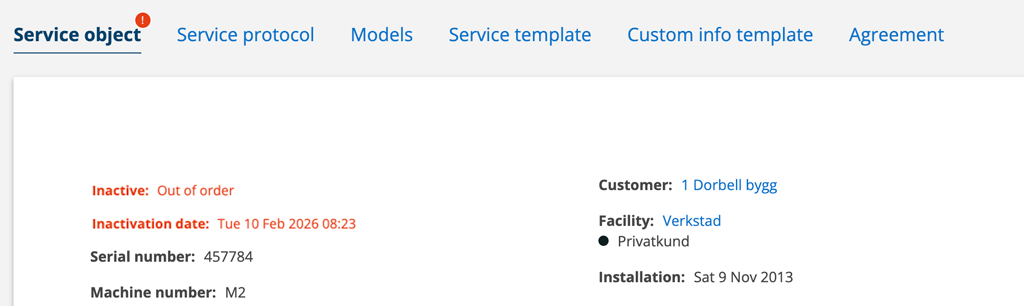
When you click Inactivate, you will get a pop-up where you enter the reason for inactivation. This information and the date of inactivation will be added to the top of the object record.
Please note that if you inactivate a facility, all service objects associated with the facility will also be inactivated.
If the facility is reactivated, the service objects will not be reactivated. This is because you may have inactivated an object for a reason other than the facility. You therefore need to go through all service objects and activate the ones that should be active.
Upload documents
You can also choose to upload documents linked to the service object. Attached files on the Model are also displayed on an individual service object. After the file name, the model from which the files are downloaded is displayed in brackets. Ex: Manual.pdf (Thermia).
History
History lists all changes made to the object, when and by whom.

