
25-12-15 – Rebuilding Order stock in progress
Now we are one step closer to making it easier to choose from which supplier you want to order an item.
All purchase orders created for “order shortage” are listed under your storage.
What is Order stock?
Order stock alerts you when an article needs to be replenished. You set a minimum quantity to have in your storage and then receive information when it is time to replenish.
To set the order point, do the following:
- Click on a layer. (In the Layers tab)
- Scroll to the bottom of the layer and click Edit.
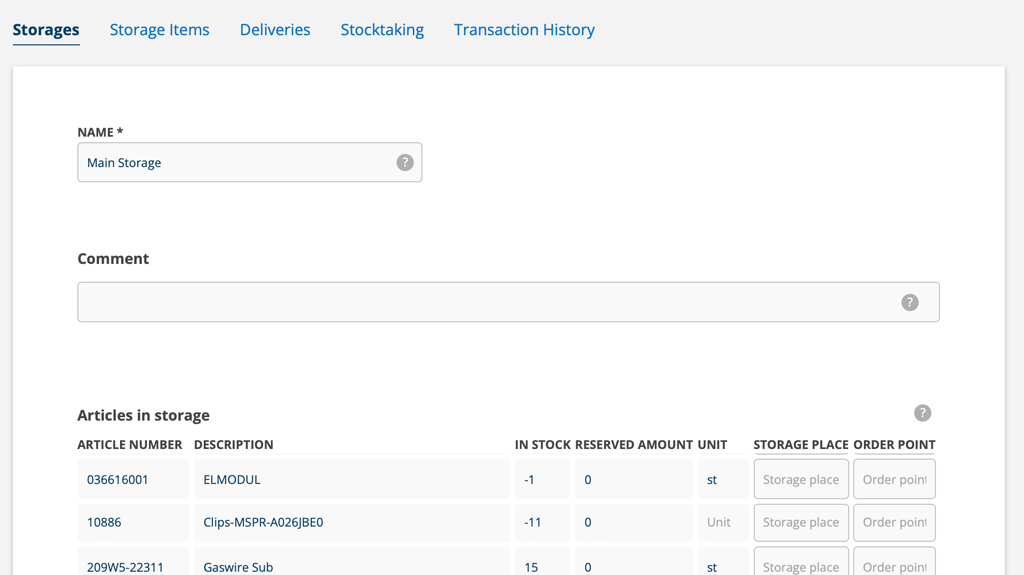
- Find the article and fill in the quantity under ORDER POINT.
- Save
When you see the Order Stock button in a storage and articles are highlighted in a bright orange color, there are articles that have passed their order point.
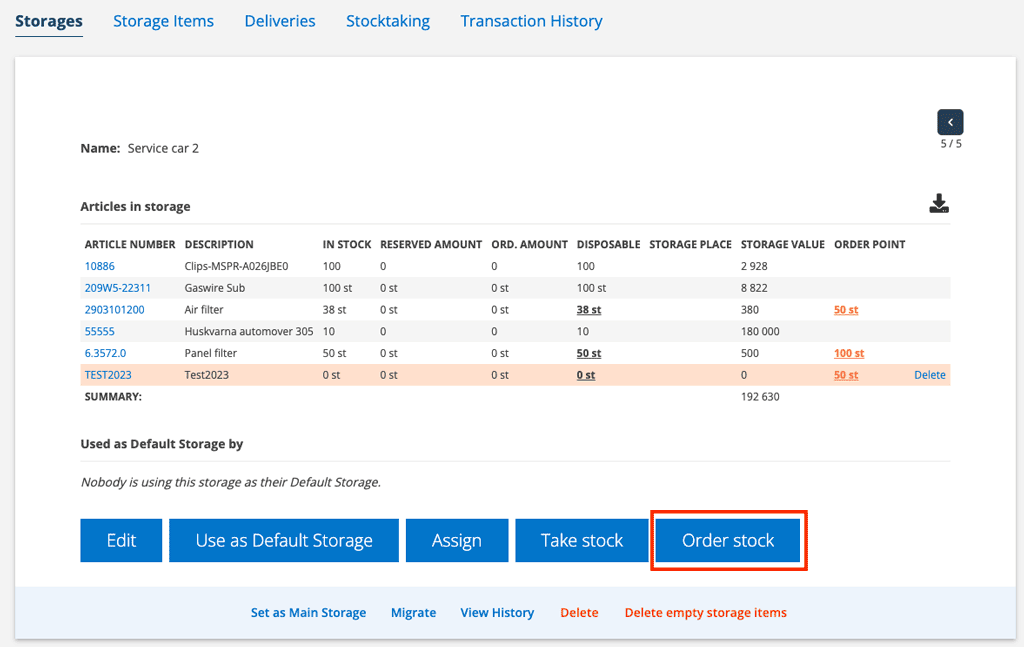
To create a purchase order for these articles, click Order Stock. A popup will open with the articles filled in.
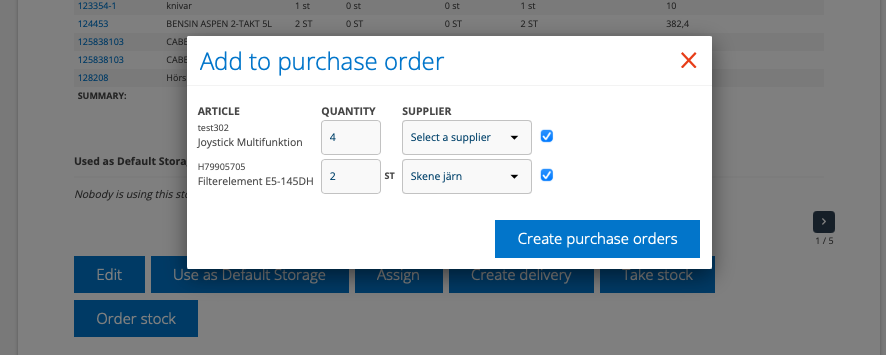
- Select the articles you want to order.
- The quantity you entered for the order articles is pre-filled. The quantity can be changed.
- If you have specified a main supplier on the article record, that supplier is selected by default. Select another supplier from the drop-down list. You can skip selecting a supplier and select a supplier later on the purchase order.
- Click Create purchase order. One purchase order per supplier is created. The articles for which you have not selected a supplier are placed on their own purchase order.
- A popup informs you about the numbers the purchase orders have received.

