
26-01-05 News
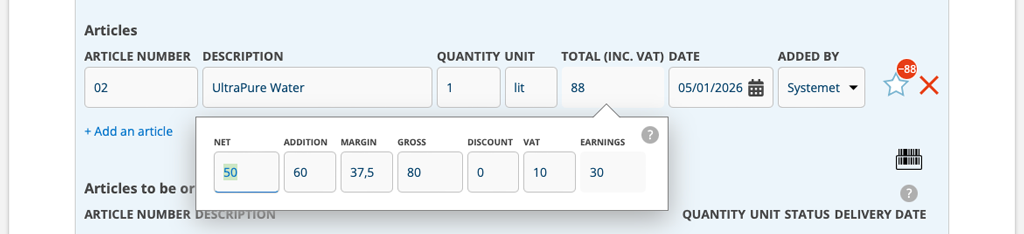
New Article Setting
When you want to be able to change the VAT on an individual article, select the article setting “Use VAT per article row”.
Without this article setting, the VAT field is locked, meaning you cannot change the VAT. With this setting, you can change the VAT on the article row.
Conditions: The customer setting “Show VAT type” is required. Admin permission are required to activate the setting.
Note:
- If you have the permission to see gross price, you will now also see VAT per article row.
- In edit mode (Edit), the total price per line is shown including VAT, while the detail view shows the price excluding VAT.
- If the VAT field is left blank, the default VAT or VAT set on the article will be automatically loaded when you save the order.
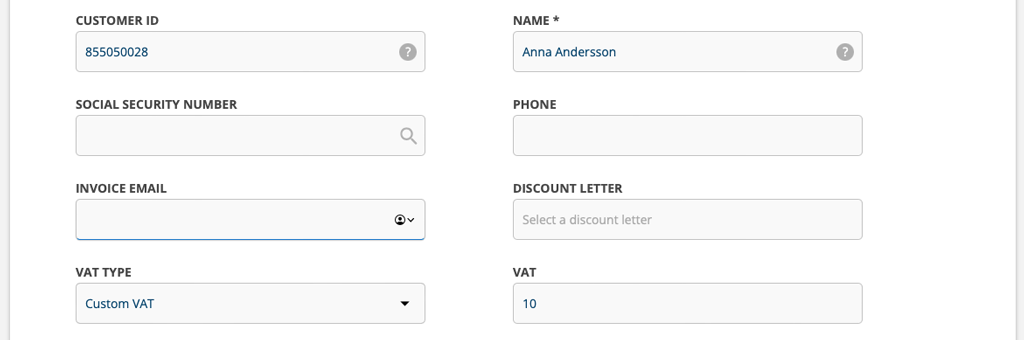
Unique VAT on Customer
If you want to specify a specific VAT for a customer, do this:
- Search the customer
- On the customer card, under VAT type, select “Custom VAT”.
- The VAT field is activated. Fill in the VAT that should apply to this customer (you do not need to enter the %, just a digit).
- Save
Conditions: The customer setting “Show VAT type” is required. Admin permission are required to activate the setting.
Note: If you want to be able to change VAT on an individual article, you also need the Article setting “Use VAT per article row”.
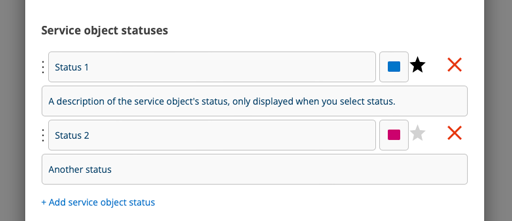
Standard Service Object Status
If you set which status should be the default, you don’t have to choose a status every time you create a new service object.
Do this:
- Go to group settings – Service object settings
- Scroll down to Service object status
- Click on the star after the one that should be the default so the star turns black.
- Save
New Work Order Setting
“Require order type to save order”
The order cannot be saved without having selected the order type on the order. Read more about Order types.
New Fortnox Setting
“Include PDF when creating order/invoice”
The printout of an order or protocol is sent when you send it to Fortnox.
No attached files are sent.
Project ID nr
Projects are numbered according to their own numbering order. No settings need to be made for this and your already created projects will be numbered according to the order in which they were created.
Learn more about Project.

