
26-03-31 – News in statistics and about creating service objects on order
New opportunities in Statistics
When you choose to extract statistics for articles, a column opens where you can choose to filter by user – SHOW ADDED BY. This allows you to extract statistics on articles added by a specific user.
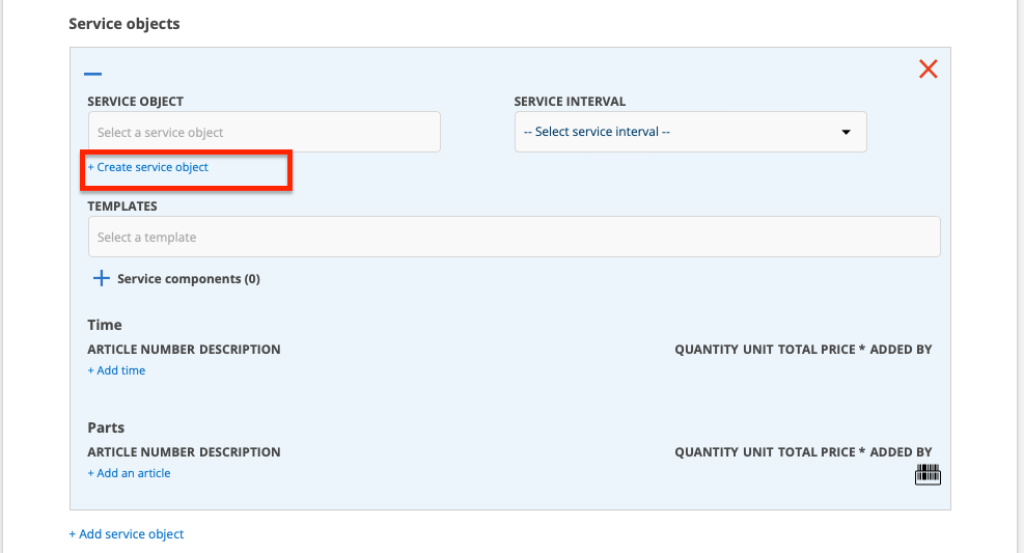
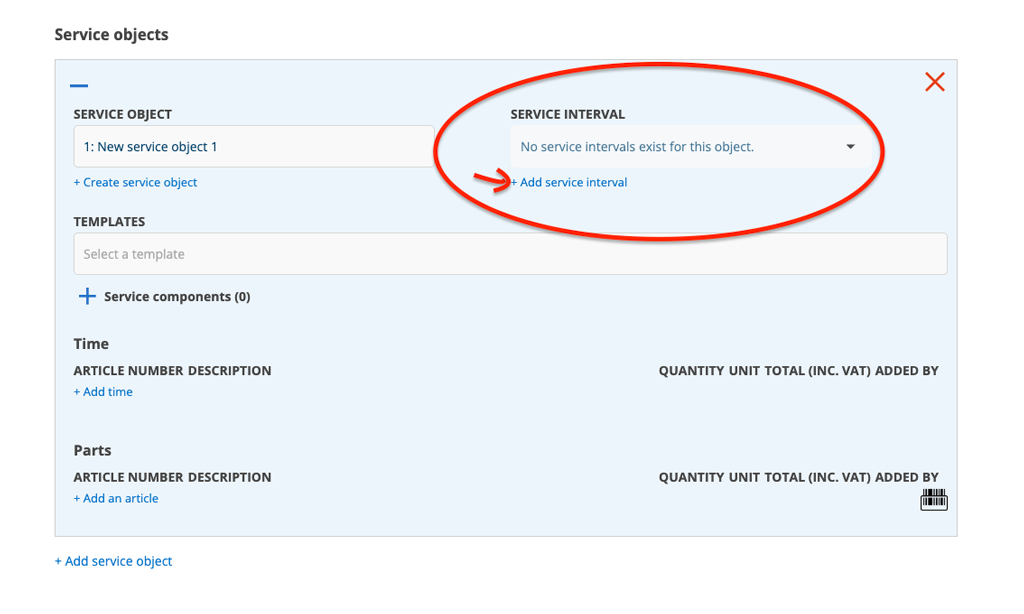
Create a completely new service object on a new service order
When you create a new service order, you can add a new service object directly and specify the service interval, service points and parts at the same time. The information is saved on the service object and controls the next service. Currently, this does not work if the object is a time-based service object and it does not apply if you select a model on the new service object.
Permission to Edit on Service object is required.
Do this:
- Choose to create a new service order via the + symbol under Register – Service order.
- Fill in customer information etc.
- Click + Add service object.
- Click + Create service object
- Fill in the details about the service object and then click Save at the bottom of the popup.
- The SERVICE INTERVAL field will now read “No service intervals exists for this object”. Then click + Add service interval. A field will open where you enter the number of days for the interval. The service interval name is named after the number of days.
- Select a service template
- If the service object is to contain parts for the interval, fill these in as well.
- Click Save.

