
You can customize what information about an article you want to see when you add it to an order. This feature is available in Edit mode. The details view is not affected by your Edit mode settings or when you use “quick add” articles.
Click the cog wheel to select settings.

This is what you can do:
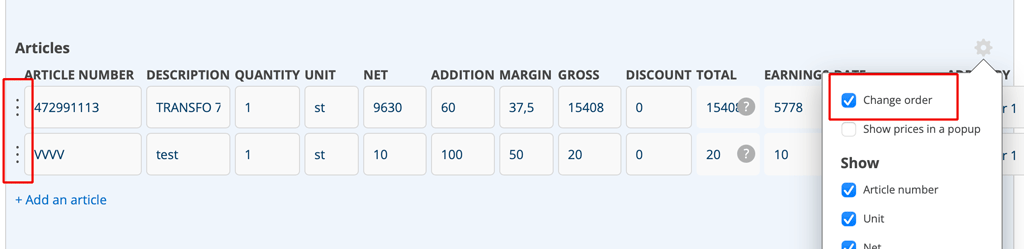
- sort rows by dragging the three dots (“Change order” – see image 2).
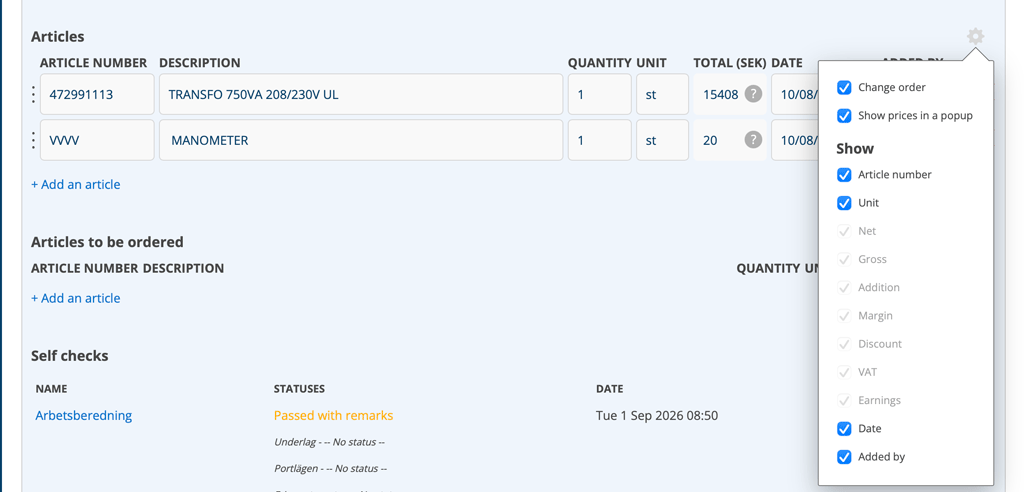
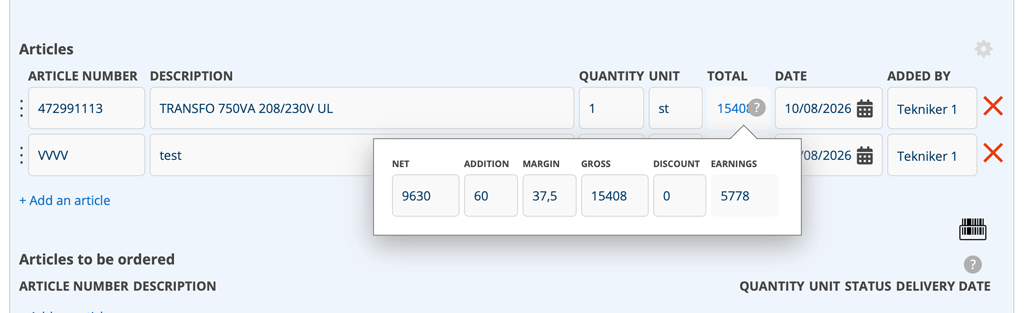
- choose whether the prices should be displayed in a popup or with the information in one line
- choose which columns to display
Your settings are saved immediately and used in all item lists in Edit mode regardless of where you made the setting, i.e. the setting you made in a work order is also used in service orders, service protocols, sales orders and quotes.
What prices would you like to see?
To change which prices are displayed, make sure “Show prices in a popup” is unchecked. Then select the price information you want under Show.
If you choose to display prices in a popup, you cannot change which prices are displayed, but you can change information such as date, added by, etc.
Conditions
You must have the pricing permission. However, without that permission, you can still make some settings that do not affect pricing.

