
Supplier invoices are found in the menu under Function.
Here you can upload supplier invoices that you have received as PDFs and view supplier invoices that have arrived in your unique inbox. You can add them to orders or in a warehouse and submit the invoices to your financial and accounting system.
If you don’t see the title in the menu, you don’t have permissions for the function. Contact someone who has admin permissions.
Below the search box is the address of your group’s unique “mailbox” that you can provide to suppliers. Checks to see if new supplier invoices have arrived are run every five minutes.
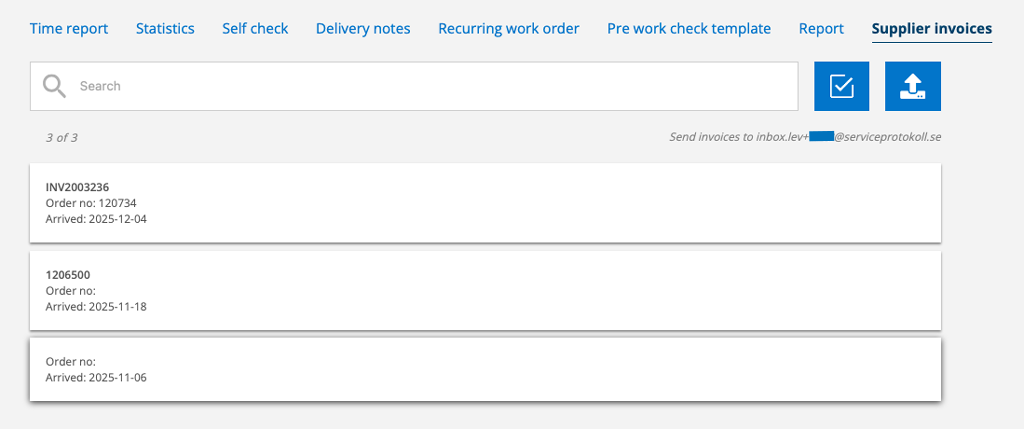
Depending on your permissions, you can Edit, Attest, Assign, Add to order, Add to storage and Send supplier invoice to ERP.
There are also Supplier Invoice settings for approval authorization.
Search supplier invoices

Under the filter symbol, you can choose whether you want to see parsed and canceled invoices, attested, assigned …
Upload supplier invoices

Click on the upload symbol to upload invoices (pdf files). Select file from your computer.
The invoice is read and information such as invoice number (name), date, articles, currency, etc. are entered.
PDF’s you upload is attached under Documents with information about when it was uploaded and by whom.
New supplier?
If a supplier invoice is received from a supplier that you do not have in your supplier register, you can set the supplier to be automatically added to your supplier register. The supplier’s name, organization number and any customer number are saved. However, the address, telephone number, email and bank details are not filled in.
The setting is made in Supplier Invoice Settings – Auto create missing Supplier. Admin permissions required.
If there is an error on the supplier invoice
An invoice that cannot be processed securely will be displayed in a separate review queue. Click View to review and fill in/change the missing information. You will receive information about what has stopped the invoice.
You can in your account setting select if you want a notification when there is a supplier invoice that has been stopped.

Concerning the articles
Articles from the supplier invoice are not added to your article register.
If you need to change the information on an article, click Edit.
If an article on an order is added by a supplier invoice, you will see the number on the article line under “Added by” and can click the link to return to the delivery note.
If you have the Article Setting “Update net/gross from EDI”
If you in the Article setting have chosen the option “Update prices from EDI” (net or gross) this will also affect articles from the supplier invoice. In the article history, you will see the supplier invoice number and can check from which supplier invoice the price was updated.
Add to order
If you want to link the supplier invoice to an order, click Add to order. Search and select the order in the popup.
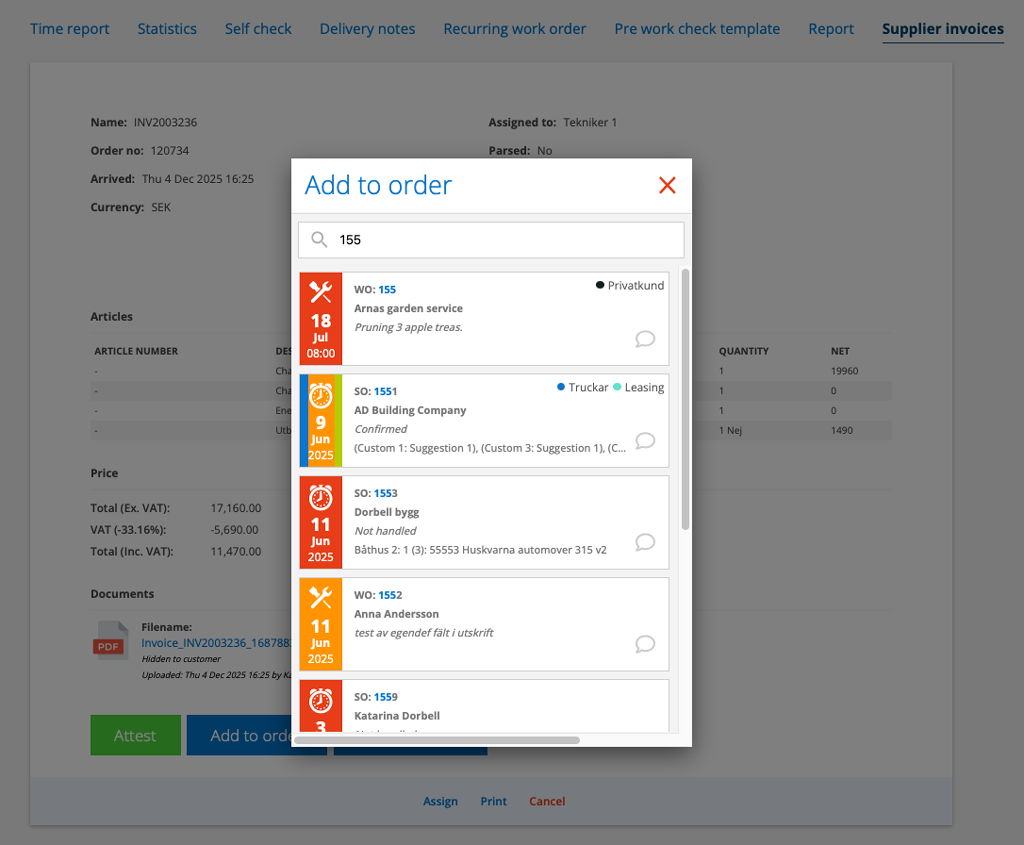
Select which articles to add to the order and click Create.
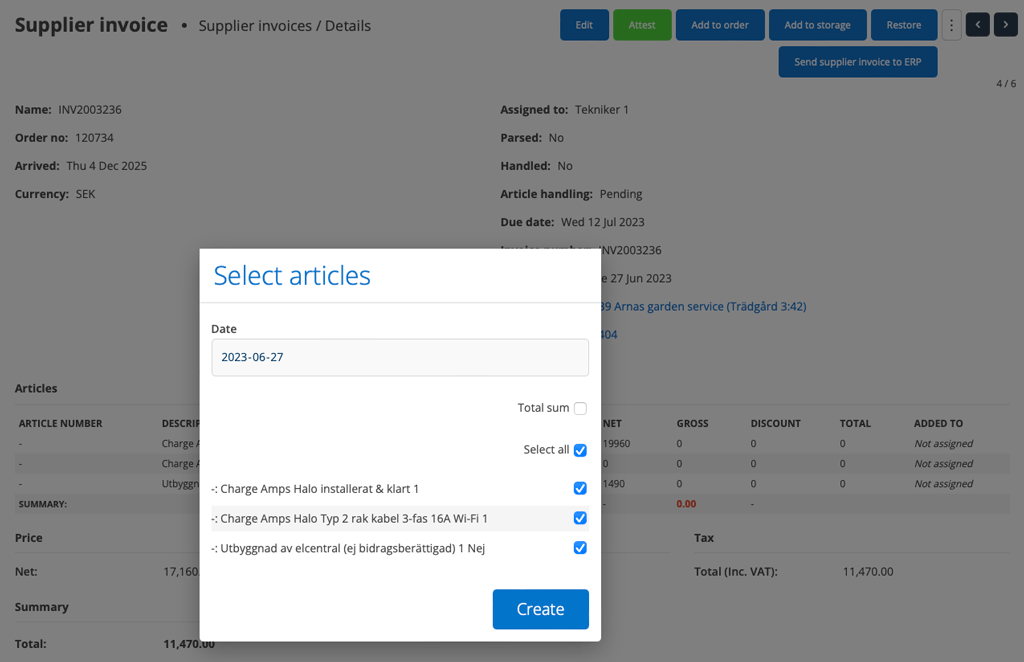
If you select Total sum, the articles will not be listed on the order, but only the sum of all articles. The article number will then be “Sup. invoice” and under ADDED BY there is a link to the supplier invoice..
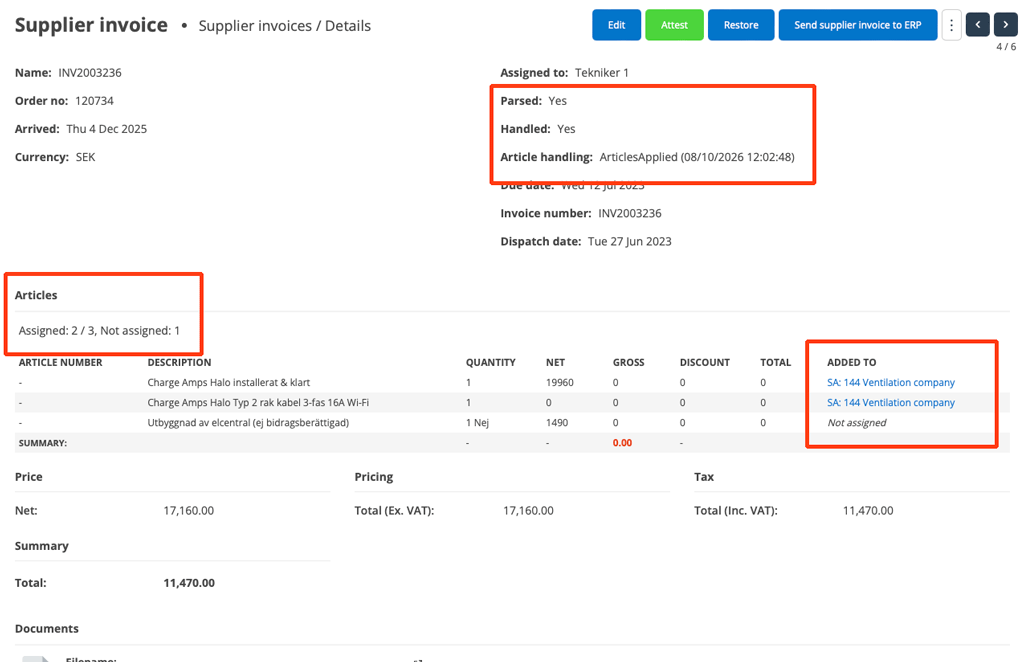
Now you will see which order the items were ADDED TO and when (Article handling). Not assigned means that the article has not been added to any order. You can also see how many articles have been added to orders or not assigned under the Articles heading.
Parsed and Handled changes to Yes.
Restore
If something goes wrong, you can click Resore and the entire process will roll back so you can correct the error.
Storage
If you want to add the articles to your storage, click Add to storage. Select the storage in the popup.
A link to the storage is added under Delivery:. Click on the storage to complete the delivery and possibly remove items that should not be placed in the storage.
Generate invoice
Click the Send supplier invoice to ERP button to submit the supplier invoice to the accounting program.
Regarding supplier invoices and Fortnox
When a new supplier invoice arrives, service protocol looks up the supplier in Fortnox. The supplier must already exist in Fortnox and is matched first by supplier number and then by exact name. At the same time, the invoice number/OCR is checked and the system links the lines to work orders, sales orders, service or purchase orders.
When you click the “Send supplier invoice” button, any missing articles will be created.
If there is a PDF, it is uploaded and linked to the invoice in Fortnox.
The number that the supplier invoice receives in Fortnox is saved as an integration reference in Service Protocol.
Credit invoices receive negative totals, VAT, and quantities.
The setting in the Fortnox integration under Send order/invoice – “Include supplier invoice article rows” controls whether article lines are sent. Otherwise, the total amount, VAT, is sent.
Permissions Supplier invoice
Admin permissions are required to set permissions to a user. Read more about how to set permissions.
Supplier invoice settings
Go to Group Settings – Supplier Invoice Settings (requires admin permissions).
Attest limits
Here you specify which users have approval authority and a maximum amount.
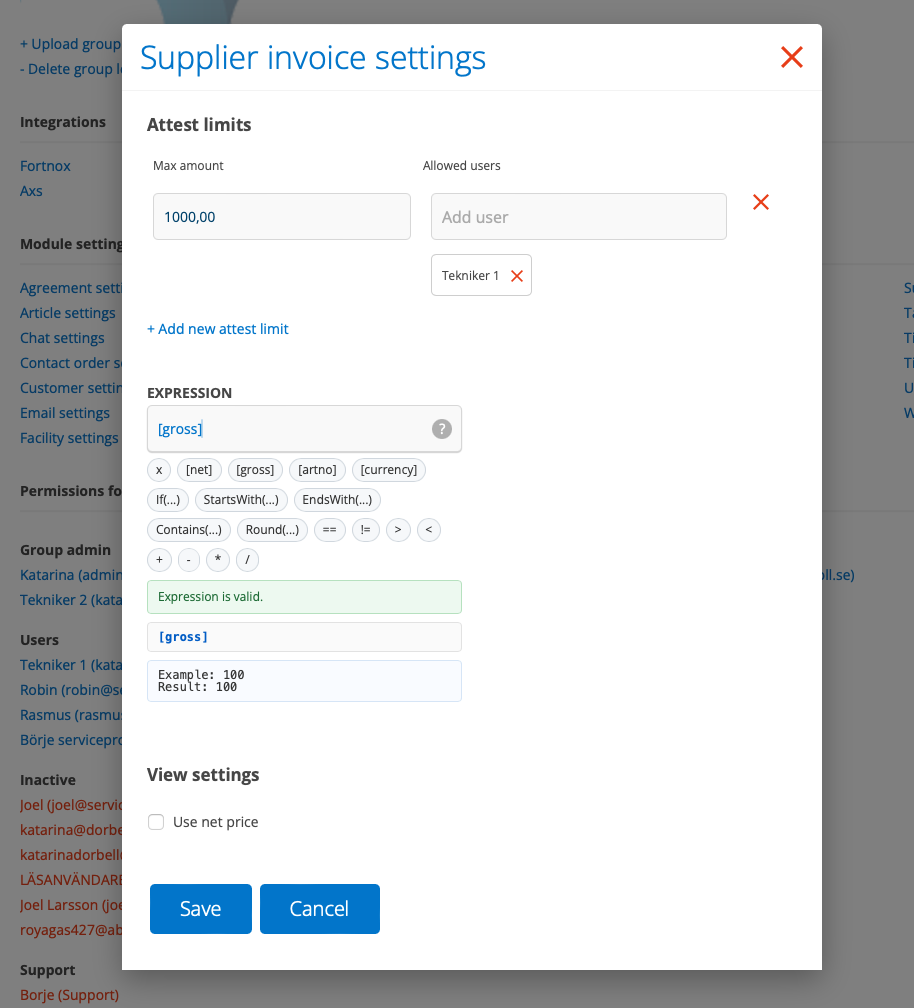
Enter expression for price markup
In Supplier Invoice Settings you can enter an EXPRESSION for standard markups. If you want different markups for different suppliers, enter it on each supplier in the Supplier Register. You do this on the supplier record in Register – Suppliers.
Place the cursor in the field and support for creating the expression will open.
Enter default addition
Enter an equation in the EXPRESSION field if you wish to set conditions (expressions) for the price of articles on supplier invoices. The equation can be used, for example, to give different markups for different price levels (markup steps). An EDI equation “stands above” general markups. Decimals are written with a period, e.g.: 2.1
Standard markup/EXPRESSION can be set generally in Supplier Invoice Settings but can also be set for individual suppliers when you want different markups depending on the supplier.
Here are some examples:
1. (5*Pow(x,-0.25)*x)+x (This is a logarithmic formula that makes the markup smaller the higher the price)
2. x*1.6 (All prices are increased by 1.6)
3. x*2+200 (100% markup + 200Skr)
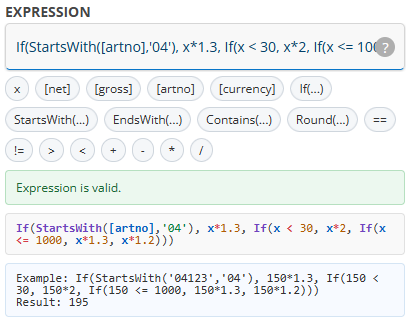
As support, there are instructions and tools for creating an equation. You see these when you place the cursor in the EXPRESSION field.
Click on a variable to select it and it will be added to the Expression.
You will find instructions under the ? (questionmark).
Example:
This function is also available in each supplier integration.
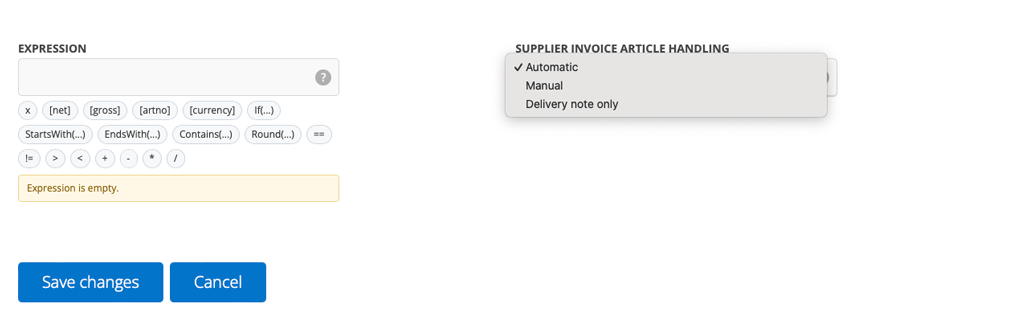
Choose article handling – How should supplier invoices and delivery notes be handled?
For each supplier, you can set how articles that come in via supplier invoices should be handled and whether specific markups should be applied to different suppliers. You do this on the supplier record in Register – Supplier.
There are three options (see image 7) to choose from:
- Automatic
Means that the system attempts to do the entire article handling without anyone having to open the invoice, i.e. finds the order and adds articles, quantities and prices to the order or inventory and sets the invoice as handled. Should anything be missing or go wrong, the invoice is submitted for manual review. - Manual
This mode is suitable when invoices need to be checked by a person, for example when article numbers, quantities or order references are not always reliable. This means that a user needs to open the invoice and choose to add selected articles and costs to the correct order or storage, or mark the invoice as handled without adding any articles. - Delivery notes only
With Delivery notes only mode, the delivery note is used to enter articles and quantities on the order. When the invoice arrives later, it is saved for the user to view and review, but the article lines are not copied again.
This mode is suitable for suppliers where delivery note integration is the most reliable source of what was actually delivered.
View settings
- Choose whether supplier invoices should use net prices.
- Auto create missing suppliers
If a supplier is missing from the supplier register, the supplier is automatically added. The supplier information is retrieved from the invoice. The supplier’s name, organization number and any customer number are saved. Address, telephone, email and bank details are not filled in.

