
Here we describe the map function in different places in the system.

If you see this symbol, there is a map function.
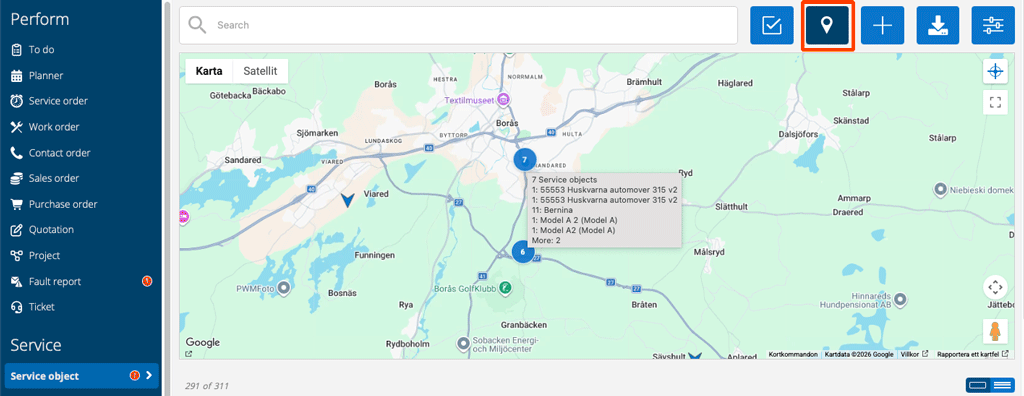
If there are multiple objects at the same position, you will see a blue dot with the number of objects at the position and a list of the objects. If you zoom in further on the map, the dot will change to an arrow and you will see more information about the order or service object. What information you see depends on your function.

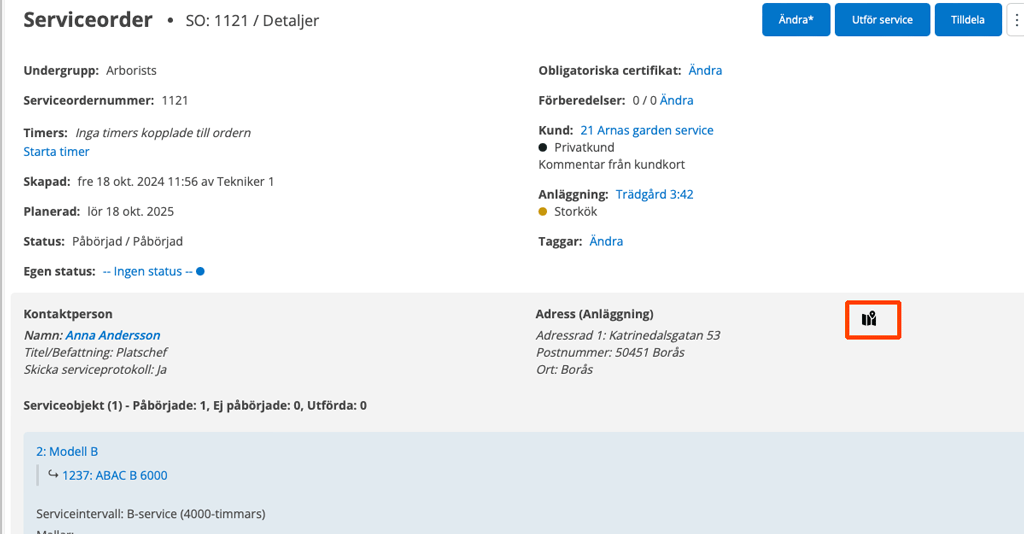
On an order you can click on this symbol to see the facility’s address.
To Do
The map under To Do shows colors by status, including color from “own status.” When you change your search/filter, the map automatically zooms in/out to include all objects in the view.
The address shown is the location you entered on the map on the facility card. If the location on the facility is missing or invalid, the location of the service object is used if it exists.
The map content is retrieved based on the current search and filtering.
The Planner
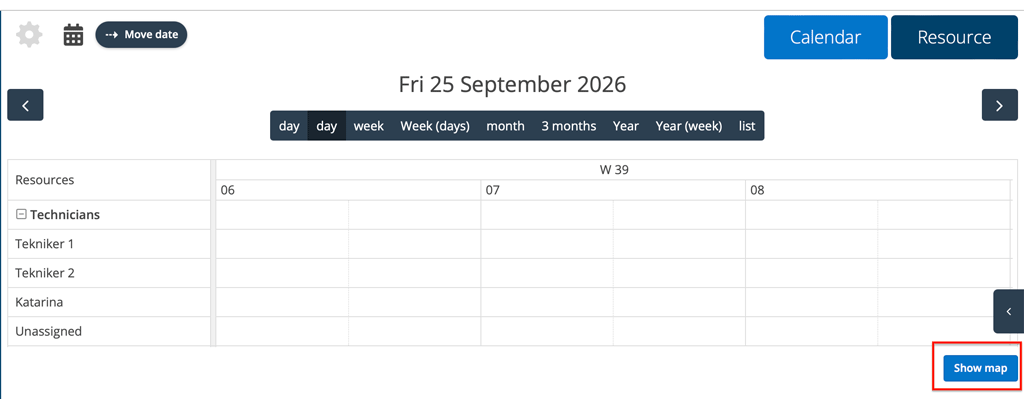
Click Show Map in the Planner or Show on Map from a booking. The selection is saved in the browser, so the map can be displayed automatically next time. Bookings with coordinates are placed on the map.
Learn more in the article The Planner.
Facility
When you create or click Edit on a facility and fill in an address and if you have chosen to allow location services on your device, you can enter the position on the map that is on the facility record. Under the map you find the link “Update position from address”. Click there to get an exact position. If you choose to enter the position yourself, double-click on the position.
The map content is retrieved based on the current search and filtering.
It you want to update the position of multiple facilities read more here.
Conditions: By default, the system asks if you want to add a facility location when performing an order. If you want to turn this feature off, you can do so in Facility Settings by unchecking the option “Ask facility location when performing orders”. The change requires that you have admin permissions.
Customer
The map is displayed on a customer record if there is at least one facility with address information on the customer. It is the location of the facilities that is shown, not the customer’s addresses.
Service object
If you have entered a position or address, the map is displayed on the service object record. The position can be entered with latitude and longitude or by zooming in on the map and double-clicking. The service object can use the facility’s position if its own position is missing. You can see whether the facility’s address is used by the “Location (Facility)” text above the map,
The map content is retrieved based on the current search and filtering.
Learn more about the service object map here.
On service and work orders
When there is an address at the facility, the map symbol will appear on the order. Click on the symbol and the Google Maps map will open. The first time you need to approve.
Applies to all maps: Google Maps must not be turned off for the group, and the map service must be able to load. An overview map can be opened without markers if the entries lack coordinates.

