
In the supplier register, you add and manage the list of your suppliers.
Add supplier to the Supplier Register
You can either upload an xls file with details of suppliers or add them manually in Register – Suppliers.
Upload records
Example file for uploading suppliers can be found under Group settings – Upload register.Read more about uploading records.
Add manually
Click Register – Supplier.
Do this:
- Click the +-symbol.
- The supplier is given a serial number (the next number in your number sequence). The number can be changed. The number is mandatory.
- Fill in your name and any contact information.
- Add an “order email”. The E-mail address shows in the popup when you click send an an Purchase order.
- Any website link should be specified with https://.
- If you want to send purchase orders to a supplier in a language other than yours, select language in the list under Language. Here you find a list of all supported languages.
- Save
Read more about Purchase order and how to send an order.
Other
Upload documents – Click upload to add documents to the supplier.
Deactivate – Click “Inactivate” if you want to inactivate the provider. A popup will open where you enter the reason for the inactivation. The provider cannot then be selected but you will still have all history associated with the provider. Inactivate is recommended instead of “Delete”.
Upload supplier information via article file
When you upload an article register, there are fields for the supplier name, ID-number and the supplier’s article number in the sample file that you can find under Upload register. Always download a new sample file as we add fields to it from time to time.
If there are new suppliers in the article file you are going to upload, you must first add them to the Supplier Register to include the information about the supplierMultiple suppliers of an article
If you have several suppliers of an article and specify one as the main supplier for the article, it is the one listed in the pick list on To Do. The main supplier is the one you marked with a star on the article record. Click on the star after the supplier so it turns black.
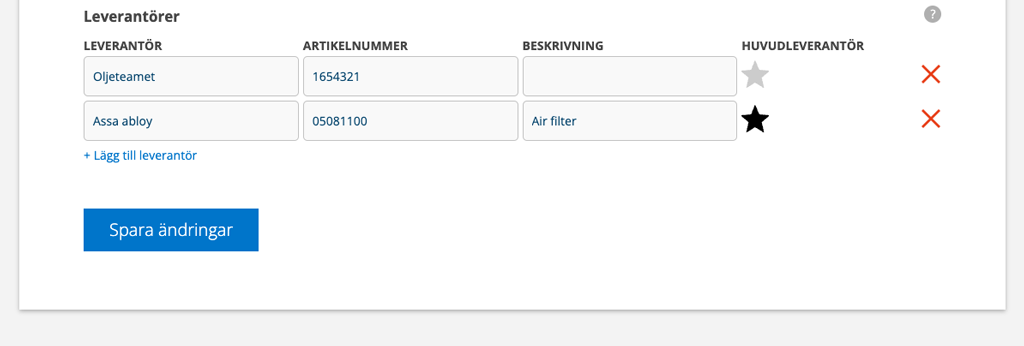
The suppliers may have different article numbers for the same article. You then connect the article by entering the different article numbers under the ARTICLE NUMBER field.
Order an article
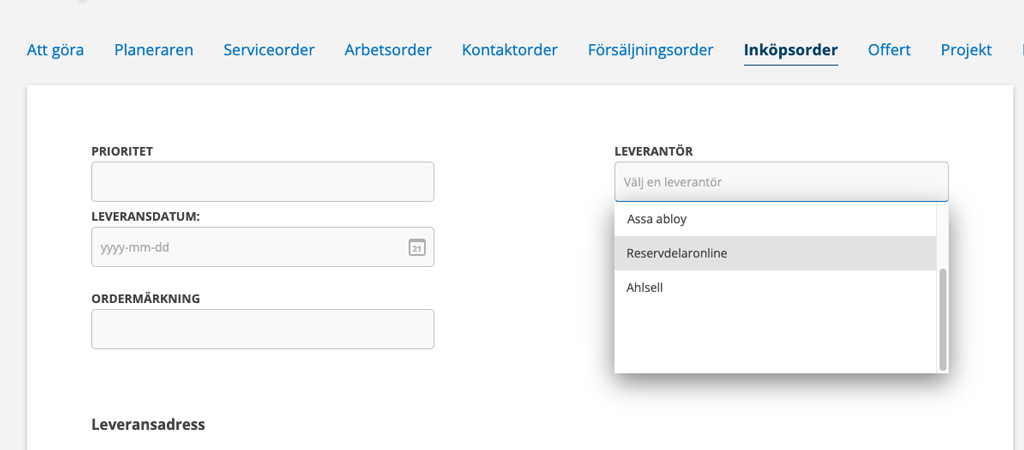
If you have activated the Articles to bo ordered field, you can quickly create a Purchase Order. Read more about Purchase orders. In the Purchase order, you choose which supplier the order should be sent to.
Use EDI connection
If you choose to use the suppliers’ EDI connections instead, you always have the current price of the articles and do not need to maintain an article register.
Read more about EDI connection and which suppliers offer that this.
Search by suppliers’ article numbers
Instructions for how to set this can be found in Articles.
Regarding syncing suppliers with Fortnox
See information concerning Fortnox and supplier sync in the article Integrationsinställningar Fortnox (only available in Swedish).

