Work on the article is in progress!
This setting is used to save assigned orders and records on your local device when you need to work in locations that lack cellular and Wi-Fi coverage.
What can you do offline?
You can execute assigned orders, fill in all details, including items, and view customer/facility details.
What can’t you do offline?
- Add or edit customer records.
- Log out and log in again.
Logging out deactivates offline mode. If you are in a situation where you cannot reach the network, you cannot log in again and therefore cannot use the app. As a reminder of this, you will receive a pop-up with a warning not to log out. - Don’t work for too long without a network, as there is a limit to how much can be stored locally on your mobile.
To activate off-line
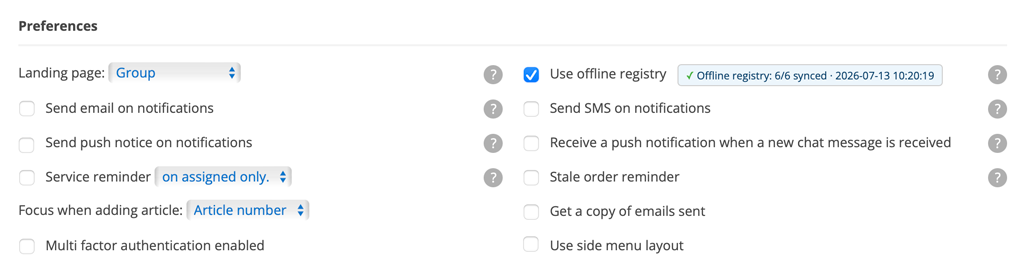
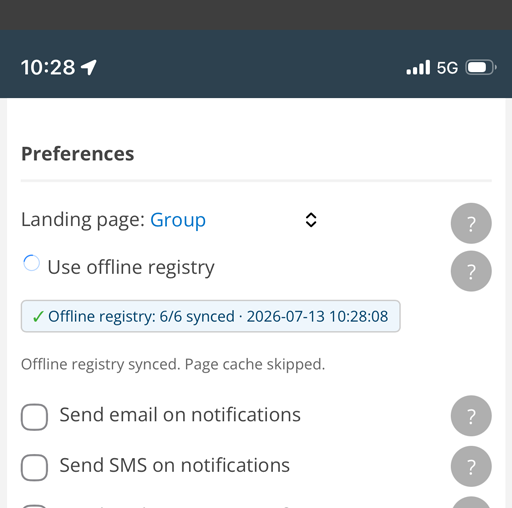
Click your username to go to Manage Account. Under Settings, select Use offline register.
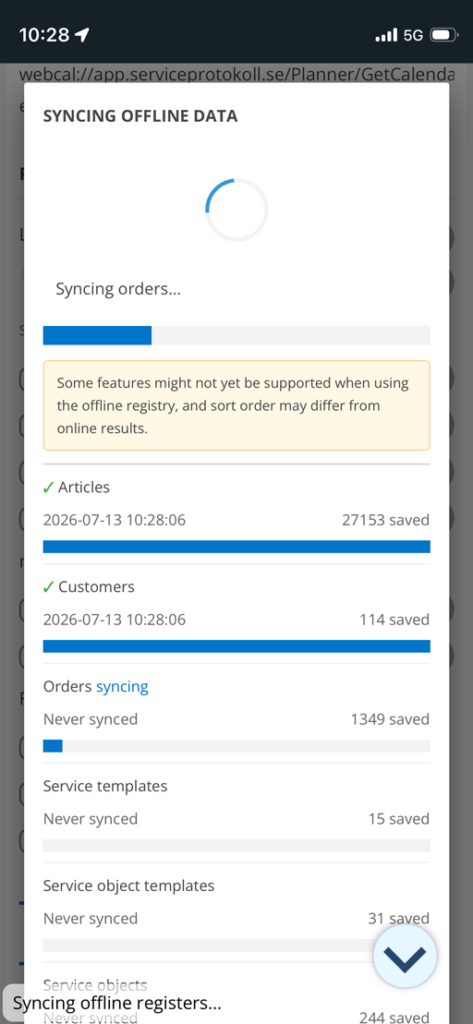
All your assigned orders will now be downloaded to your device, as well as the supported registers. This will take a while, so be patient!
You can follow the progress in the popup that opens (image 2) and you always see the latest synchronisation of registers (see image 1). If you want to see which registers are synchronised, click on the blue link and the popup will open with information about which functions have been synchronised.
If you need to sync again, click the Re-Sync button in the popup.
You can also click the sync symbol at the bottom left of your mobile phone in the To Do view.

A symbol in the right corner shows you that the order is saved locally on your device. See image 3 with example from To do.
In the registers, you can see below the search box whether a register is downloaded offline or online. If you are online but still cannot find an article, try unchecking Use offline register.


Before you go offline/lose network
Make sure you are assigned to the order you are going to work on.
While working
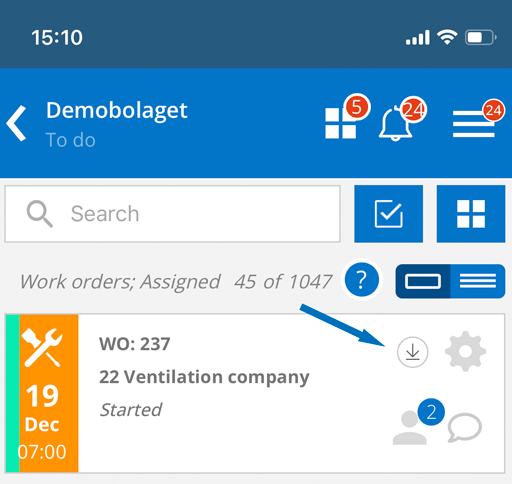
A download icon in the right corner of the detail view tells you which orders are downloaded.
Go to the orders you are going to work on and click Perform (for service orders) or Edit (work orders). Fast add articles can not be used when working offline.
What you fill in is temporarily saved on your device, even if you leave that order view.
NOTE: Do not click Save.Customer signatur
Using customer signature?
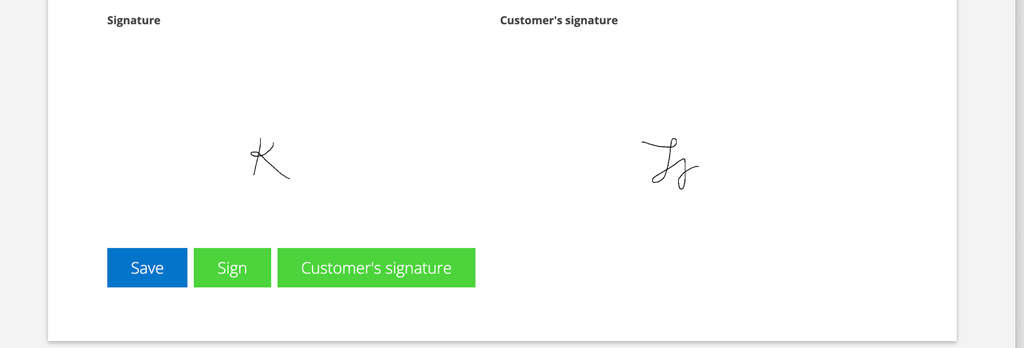
- Click on Customer signature and have the customer sign.
- Click Sign and sign yourself.
- Then click Save.
- You will receive a message stating that you are offline. Click Ok.
When you have network/wi-fi again
IMPORTANT! Perform this on the same device you worked offline on.

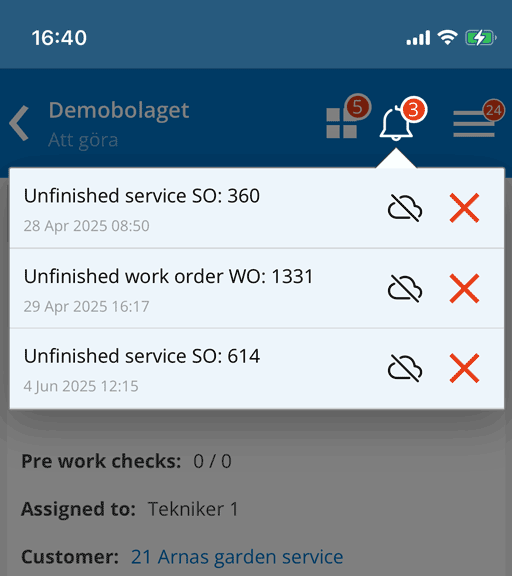
- Click on this symbol. Your orders will be listed as Unfinished work order or Unfinished service order.
- Click on the link (text) and you will be taken to the order.
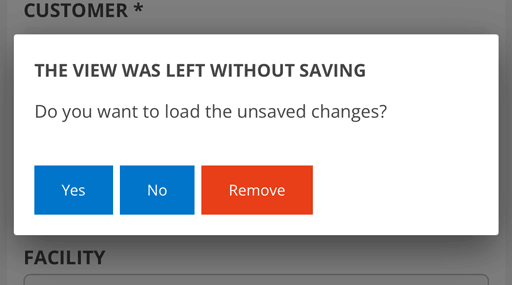
- You will be asked if you want to load unsaved changes – answer Yes.
- Click Save.
- Do this with all your orders you worked on offline.