
26-02-05 – News on tags, comments …
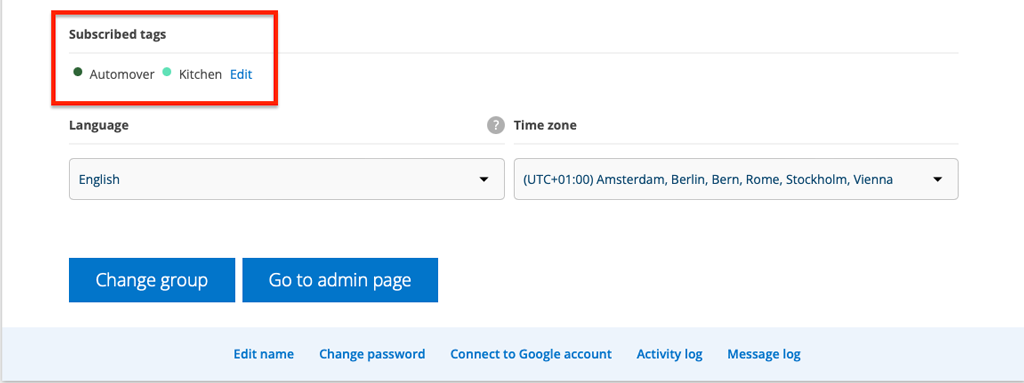
Subscribe on tags
Set which tags you want to subscribe to in your Account Settings and you will receive a notification when a tag is used. You can access Account Settings by clicking on your username.
Tags on quotations and fault reports
Now you can also set tags on quotes and error reports. The tag you set on an error report is attached to the work order you create based on the error report. To make it easier for you, all your tags have been given permission for quotes and error reports. If you want to change this, you need to go to Group Settings – Tag Settings and click on the gear wheel after the tag where these should not be used.
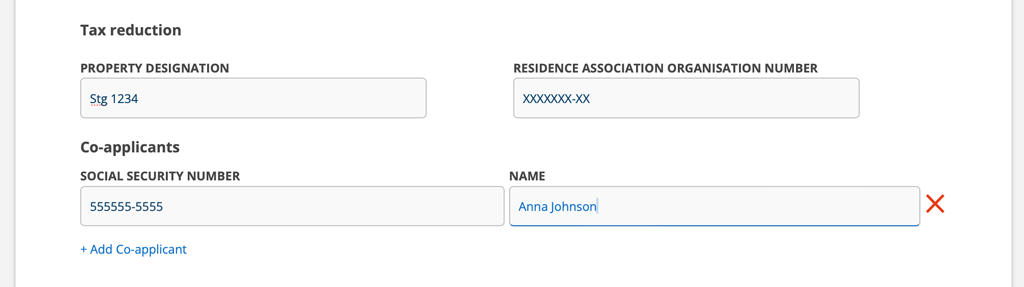
Concerning Tax reduction (only Swedish users)
If a customer is private and you are going to use ROT/RUT deductions AND there is a co-applicant, enter the co-applicant’s name and social security number in the Co-applicant field.
Previously, this field was used to enter the customer’s social security number. You do not need to remove that social security number, as the entire deduction will be registered to the customer.
See a list of all your uploaded files
For a list of all your uploaded files, enter the URL https://app.serviceprotokoll.se/filecontainer
You must be logged in to your group. You can see the name and size. For newer files, you can also see when the file was uploaded and by whom. Clicking on the file will download it to your computer.

How do you know you need to order a shortage?
To avoid having to click into your inventory to check if it is time to order missing items, we have added a red mark to the Inventory menu.
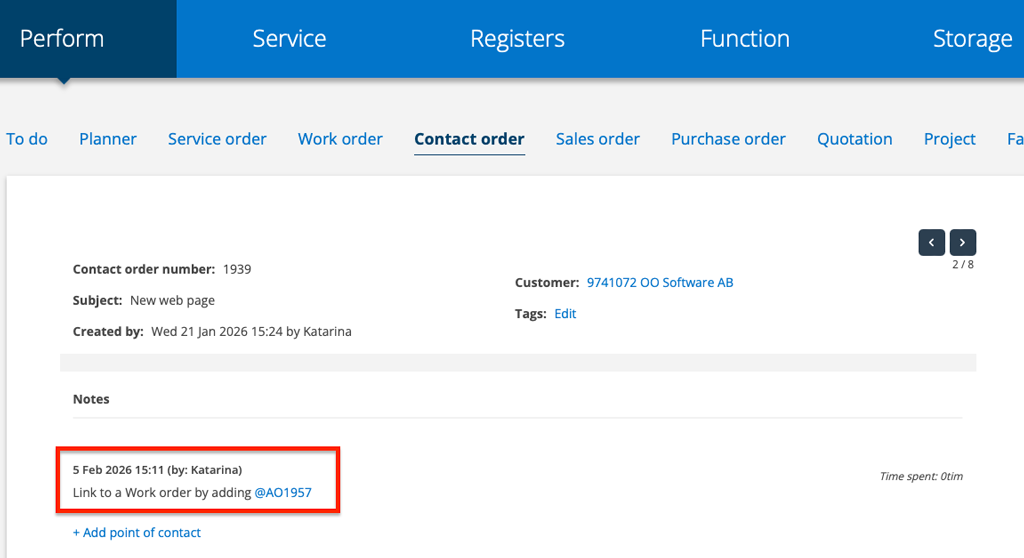
Link to an order
Write @ and order type + order number and it will become a clickable link! Example @AO11.
Works in comment fields and in a contact order’s contact point.
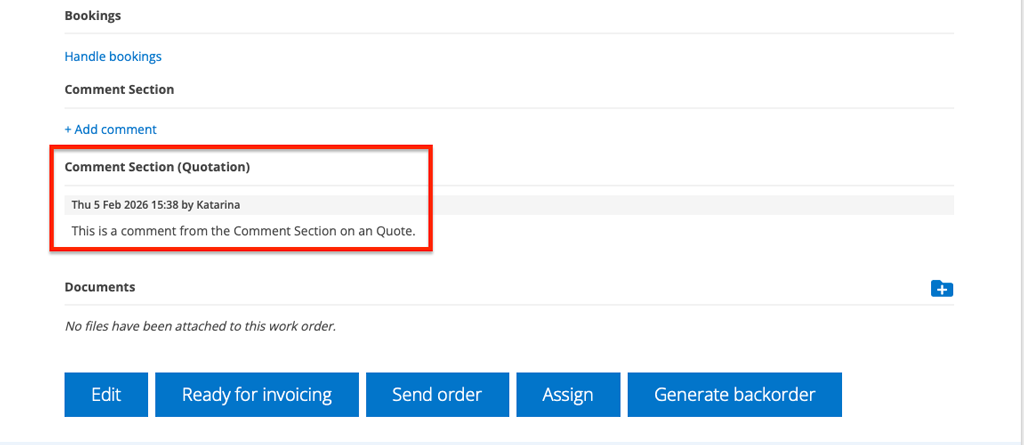
Comments, delivery address and delivery date on quotes are now included with orders
When you write a comment in the comments field on a quote and then generate an order, the comment is included with the order.
In addition, the delivery address is included in the address field. You can see that the address has been included by the words (Offer) after the address. The delivery date is written in the Planned date field.

