
26-03-02 – Maintenance Fair, social security number, planning multiple orders, time rounding and Edit*

Meet us at the Maintenance Fair
March 10 – 13 we will be at the Maintenance Fair in Gothenburg, stand C03:29.
Sales and support are available every day to answer your questions or just chat for a while. Hope to see you!
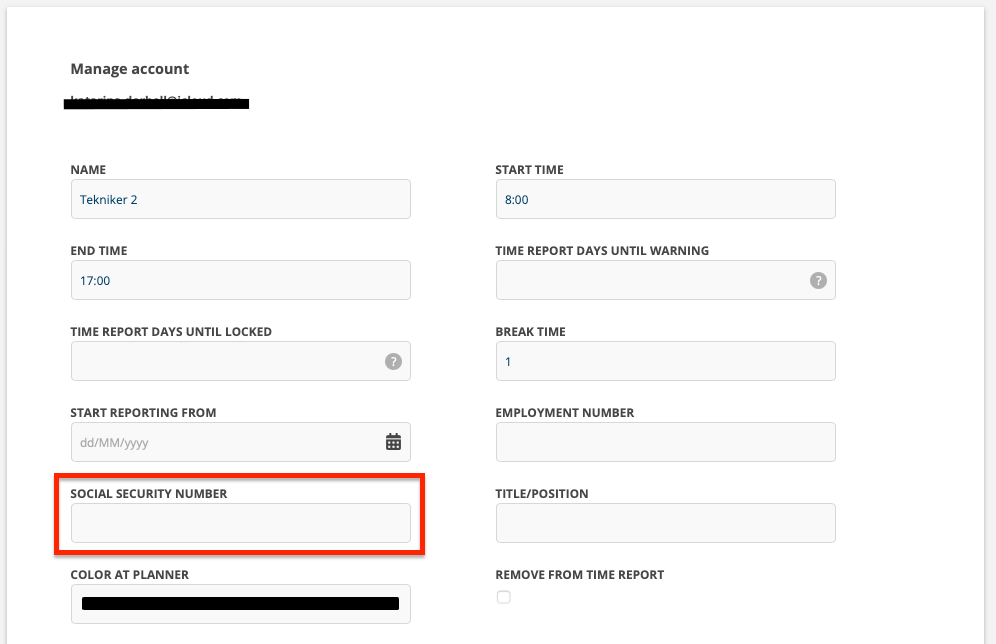
Social security number in user settings
We have added a field for social security number in user settings.
There is also a tag for your own social security number print template – {SocialSecurityNumber}.
Here you find all tags that can be used to add timers from orders on a template.
Plan multiple orders at the same time
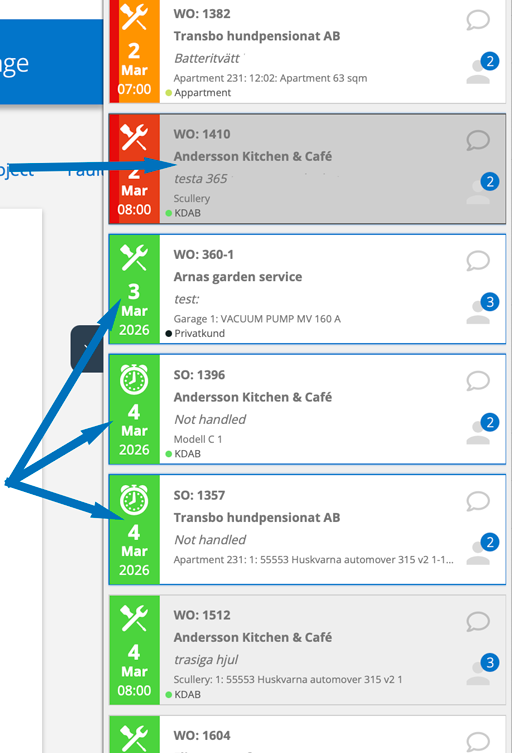
By holding down the alt key you can select multiple orders. A blue frame shows which ones you have selected (see image 2)
Then drag the orders to a day. You can see how many orders you have selected by a small number in the upper right corner of the order box.
If you have chosen the day view (video 1), each order is placed on a separate hour in a row.
If you are in weekly view (video 2), each order is placed on a separate day in a row.
You can see which ones you have planned by the order having a gray background – see the upper arrow in image 2.
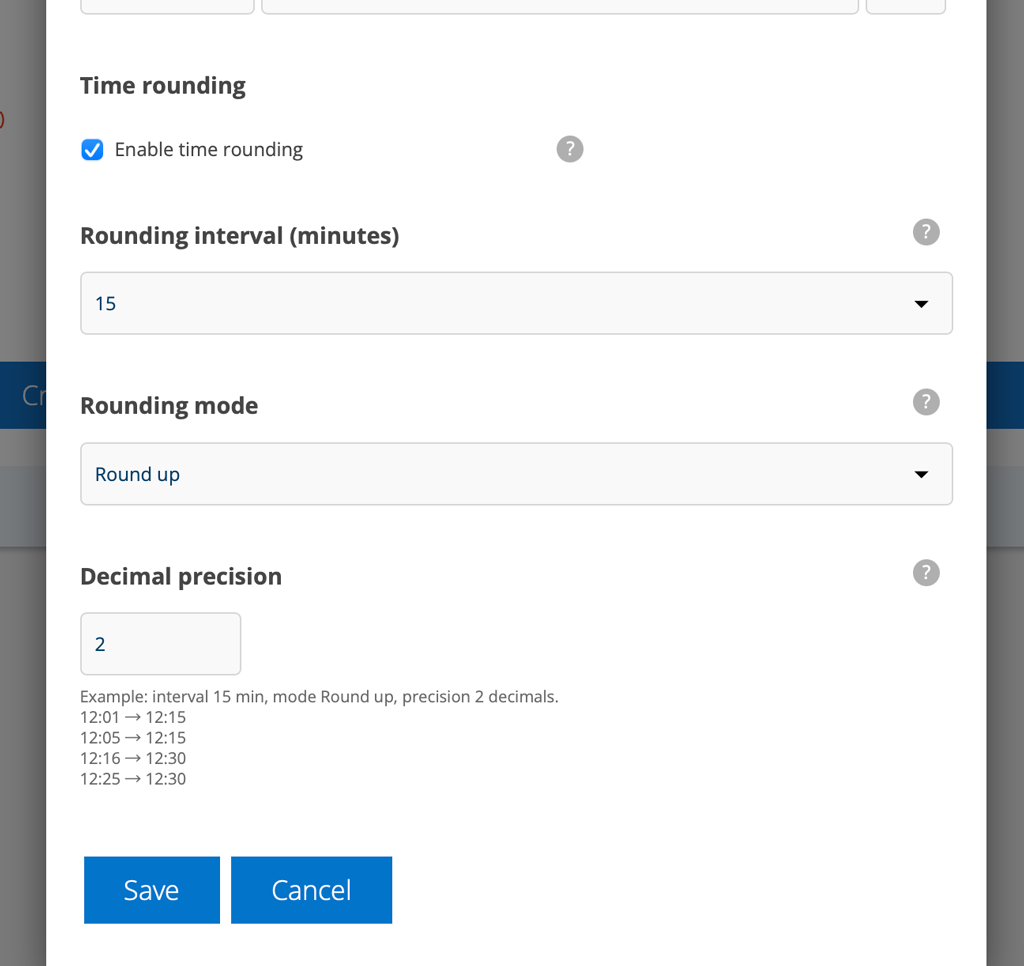
Time rounding
Don’t like the timer to round off in 15-minute intervals? You can change that in the Timer settings.
Read how to set time rounding here.
Setting the timer’s time rounding requires admin permissions.
Do you need to change a Service Order that has already started?
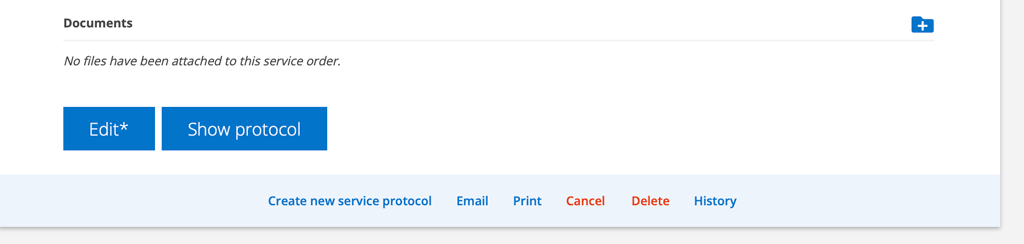
It happens that a task is incorrect, a contact person or a selection in a custom field, for example. As an admin, you have access to a limited edit view and can correct the error.
You will see an asterisk * next to the Edit button if you can change it. Changes you make will be added to the service log.

