
Activate Multi factor authentication
To increase security, we will be enabling multi factor authentication for all users. For now, you can choose to enable the feature yourself – do it for your own security.
How to enable the feature
You can activate it in your Account Settings. Click on your username and look for Settings – Multi factor authentication enabled. Check the box. The setting will take effect immediately and the next time you log in you will be prompted to log in with a code.
How does it work?
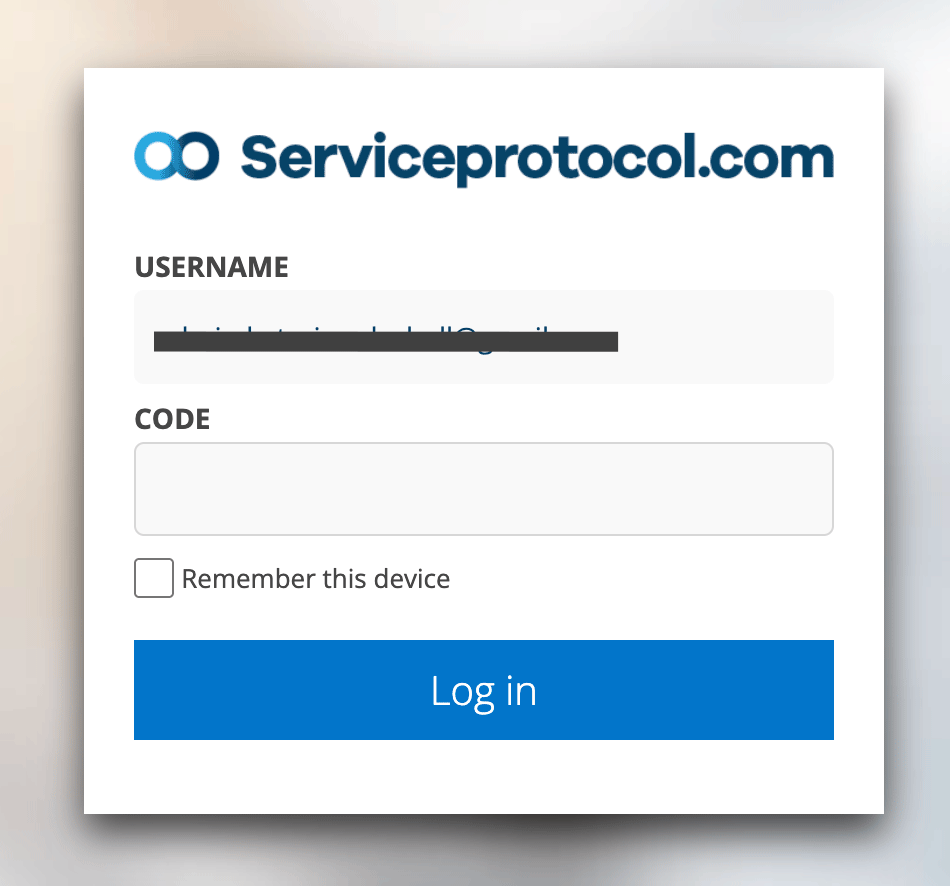
When you log in after multi factor authentication is enabled, you will receive a six-digit code. If you have entered a mobile number in your account settings, an text (SMS) will be sent to it, otherwise the code will be sent as an email to the email address that is your username.
Check “Remember this device”, this will save you from having to enter the code as often. A “trusted device” is valid for 30 days.
If you change your mobile phone, computer or switch to a different browser (Chrome, Safari, Edge, etc.), you will receive a new code.
If you or your group are unable to enter a mobile number and have changed your email address and therefore cannot access the old one, contact Support and we will help you resolve it.

