
Admin permission is required to access the user register.
In Register – Users there is a list of all your users, including customer users, view only users and external resources.
The user registry provides the same capabilities as those found in Group Settings.
Select categories to display
Click the + symbol to select categories to display.

Edit permissions and user settings
Select a user in the list.
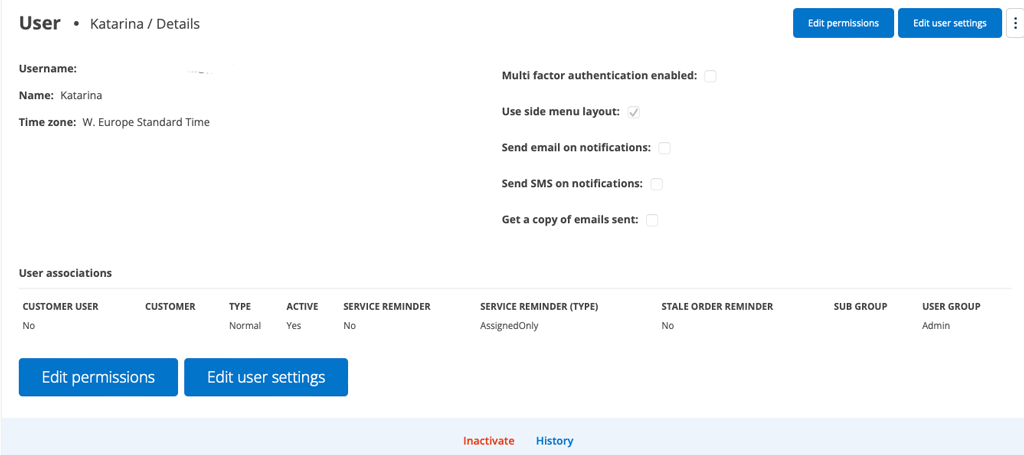
Edit permissions
Under Edit permission there are a variety of settings for each function in Service Protocol that you can make for each employee, for example what should be shown to the employee, if he has the opportunity to create, edit or delete orders and documents.
By granting permissions, you also choose which features a user will see. We recommend that you only set permissions to the features used to reduce the menu.
Read more about User permissions and how to create permission templates.
Edit user settings
In Edit User Settings, you can specify things like working hours, employment number, notifications via email/text, etc. Here you can also give employees a color code that is then visible in the Planner.
Here you also set whether the user should:
- Removed from time report
- Remove from chat
- Remove from assign (ie the user cannot be assigned orders)
- Assign self-created orders automatically
- Assign orders edited automatically
- View and set which notifications the user should receive.
Edit customer user permissions
Click the cogwheel to the right of the customer user and select Edit permissions.
Feel free to create a permission template for customer users. Click Add a new template. You can also Duplicate a previous template.
Inactivate
Inactivating means that the user remains in the system but you do not pay a license for the user (termination of license). The system handles this automatically. You do not need to report that an employee/user is inactive/terminated. All history for the user is saved. If necessary (due to GDPR, for example), the user’s name can be anonymised so you can still maintain history and traceability. Contact us and we will fix it!
If a user is inactivated, you will only see the Activate button. Click Activate to reactivate the user.
History
Click on History to see what changes the user has made to the user settings. Click on the link to access the function.
Filter on customer users
- Click on the filter symbole
- Mark SHOW ONLY Customer users

