
Search order

Click this button to filter your search.
Example: select those assigned to you, limit by date, customer, etc. Each function has different options for filtering the search.
If you want to use the same filter more than once, you can choose to Save settings (at the bottom right of the box). Learn more about Saving as favourite.

You can browse between orders and register entries, either by clicking on an entry in the list or by browsing with the arrows in the upper right corner within an order och record.
If you have used a filter for your search among orders, you will browse through that selection.
If you want to search for a specific order and know the number, you can type an asterisk * before the number. Here you find more tips on searching.
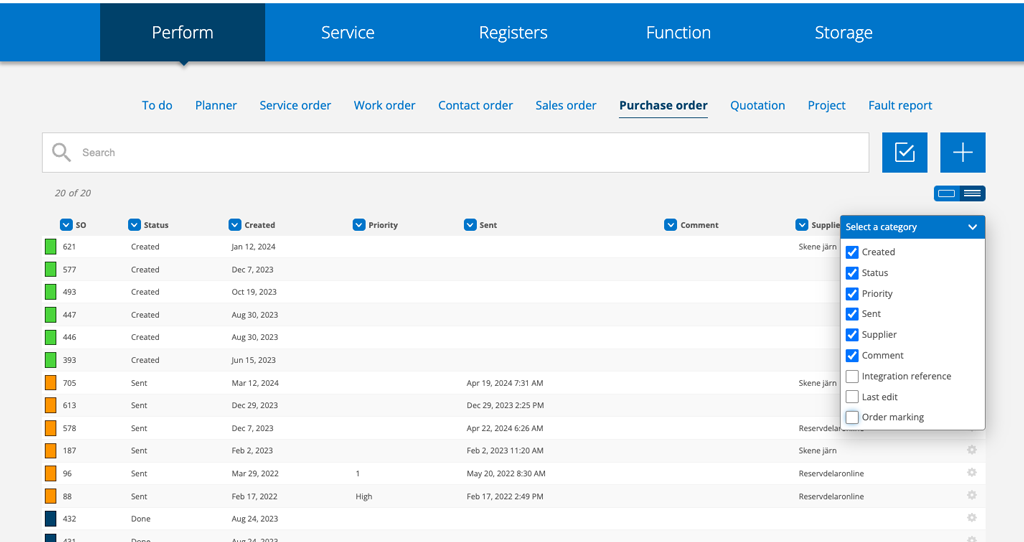
Select categories to show in list view


Select list view by clicking on the right part of this symbol. If this symbol is not present, we have not yet developed a list view for the function.
Then click on the + sign. Select categories from the list.
Remove categories by unmarking the category in the list. Your selections are saved and the list is closed by clicking outside the list.
Change column order
You can move your selected categories (headings) around to get the order you want in the list. “Grab” the category with the cursor and drag it to where you want it.
Sort list
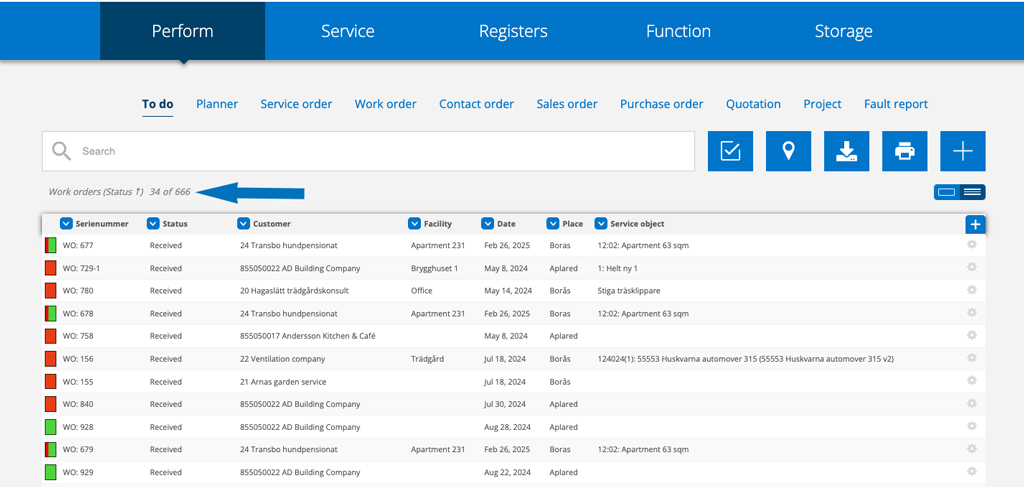
The list can be sorted by clicking on the category (heading). How you have chosen to sort is also shown in the text above (see arrow in the image).
Sort the list
The list can be sorted by clicking on the category (heading). How you have chosen to sort is also shown in the text above (see arrow in the picture).


