Here are described different ways to see if a protocol, order confirmation or booking confirmation has been sent.
Message history
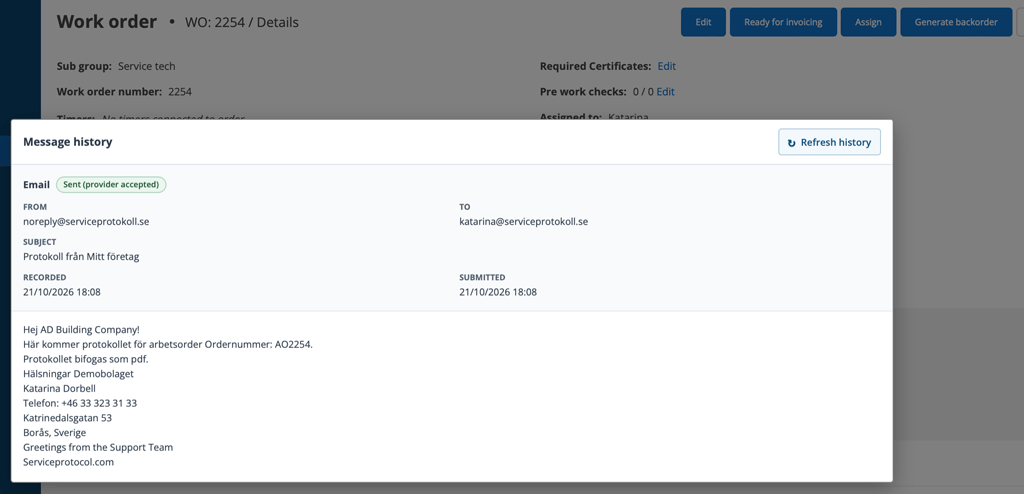
Information about when, to whom, and who sent email and text messages associated with a Quote, Work Order, or Service Protocol is displayed under Message history in the details view. It can be:
- Booking confirmations
- Order confirmations for work orders and sales orders.
- Sending of protocols etc.: work order protocols, service orders, service protocols, self-inspections, quotes and purchase orders.
- Own emails sent from the work order.
For email, the history can also show Queued, Handling, Delayed, Failed, Canceled, Rejected and Status unknown. The history is retrieved at a certain interval, so if you have just sent and there is a queue (i.e. many sendings are being made at the same time) for outgoing email and text messages, it may take a minute or so before the history is updated.
Check in the planner if the message has been sent
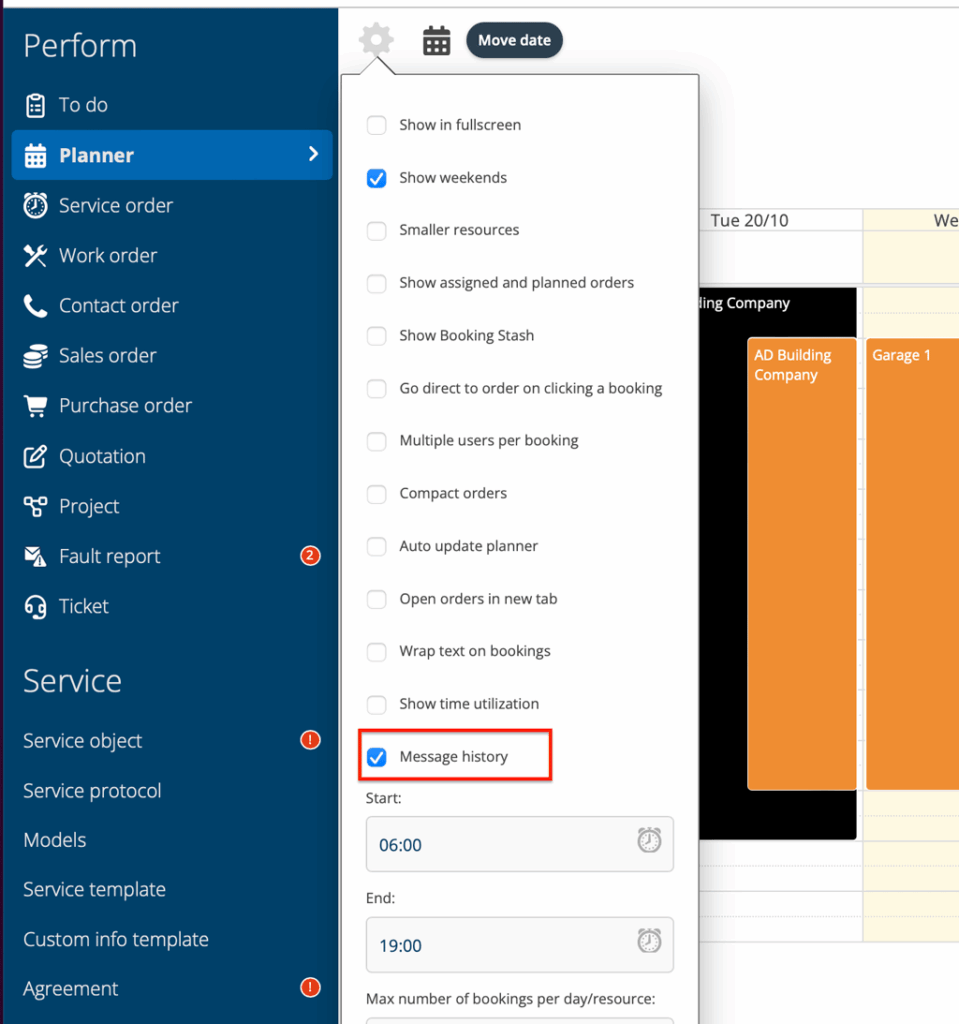
Under the cogwheel, select Show Message History. The message history will then appear in the popup when you click on a booking.
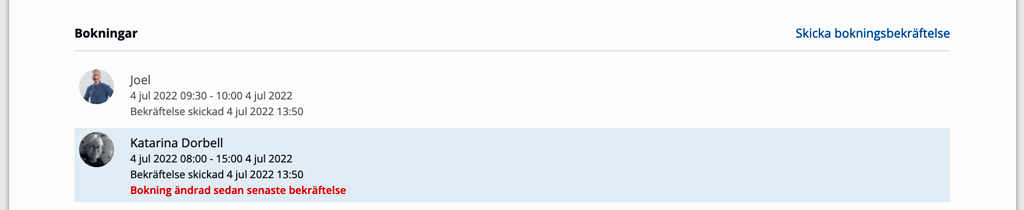
If a booking has been changed since the last booking confirmation was sent, a warning will be displayed in red. For quotes and sales orders, the shipping information may be marked in red when changes have been made after sending.
As a category in the list view on protocols
In Service – Service Protocol, select the list view and then click the plus symbol to expand the list with the category (headings) to choose from. Select Email sent. You now have a table with the heading Email sent. The information that is displayed is when, from whom and to whom.
In the Message log
You find the Message log at the bottom of the page Manage Account. Read more about the message log
Booking confirmation
When you save a booking, you can click the Send booking confirmation link. If the booking is changed after the confirmation has been sent, it will be marked in red.