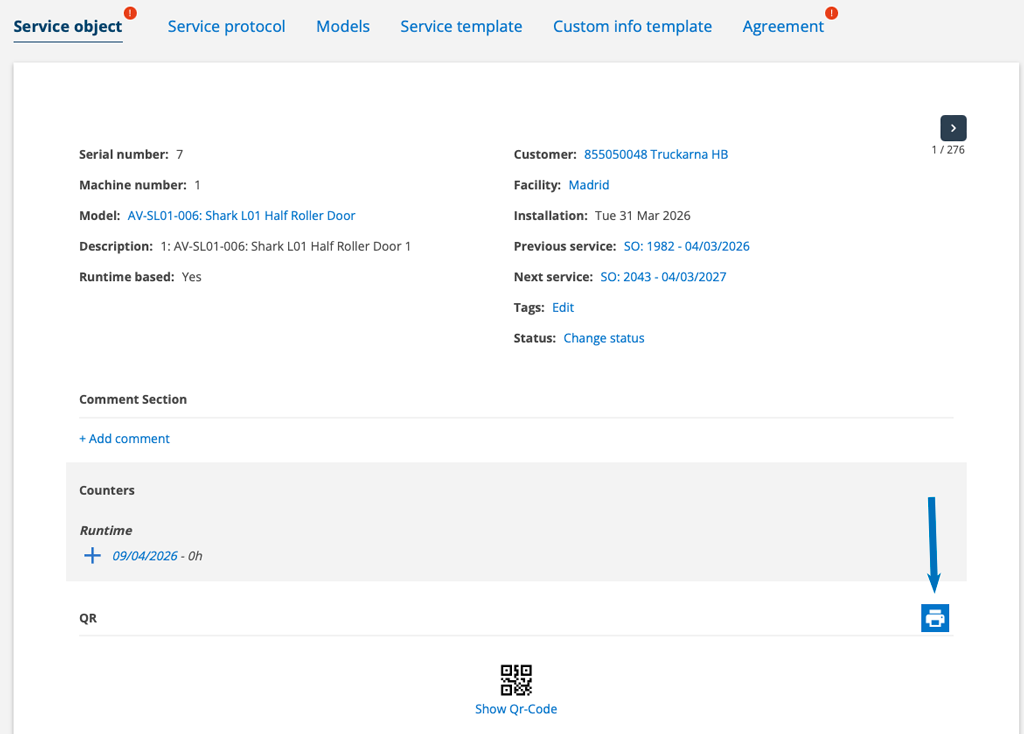
The feature allows you to create QR codes that lead directly to an order form where customers can place an order for spare parts for the service object. No login is required by the customer to order.
The parts that can be ordered must be available on the service object under “Parts”.
Do this
- Enable the Service Object Settings – Allow “order parts” and Allow anonymous access
- Create a print template with a QR-code with the tag {ServiceObjectOrderPartsQRCode}. Here you find all tags for QR-codes.
- Upload the template under Module Settings – Service Object Settings – Print Template.
- Go to the service object, click on the printer symbol to the right of the object. Select your uploaded template and print the document.
- Post the document with the QR code on the service object.
- When a customer fills out an order, a sales order is created.
To receive a notification when an order has been placed, you can subscribe to sales orders. You can set this up in your account settings, click on your name and scroll down to Notifications. Select Create sales order. You can read more about how to set up the feature here.
The customer does this:
- The customer scans the QR code on the service object.
- An order form opens.
If there is a contact person at the facility, that information is retrieved. If there are multiple contact persons at the facility, the system selects the contact person who was first added to the facility. If there is no contact person entered, the customer fills in their information (or changes retrieved information), the number of parts to be ordered, and clicks Order parts or Save. - The customer will receive a confirmation immediately and an email with the order.