
There are a number of settings for service orders and permissions that can be made. Go to the Group Settings page (requires admin permission).
Set email addresses for ordering information concerning articles/parts
Add email address(es) of the persons who will receive information about which articles to order, has been ordered and delivered. The email is sent automatically when an order is saved.
View settings
- Show custom info (about the service object in the service order.)
Add the function Custom info on a Service order. - Show service interval name (in the list of service orders on the customer record.)
- Show comment section from last service
Comments from the previous service are displayed on the service order. - Show invoiced to.
The field INVOICED TO is added on the order. - Show “other” articles.
The field Other articles is added.
Note: you can also select this on Service protocol settings. - Update planned date when booking.
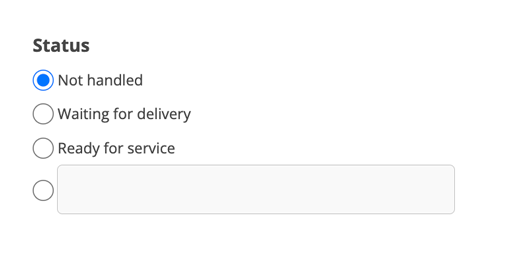
If you add a booking, the planned date changes to the booking date. - Show status
The default setting is that this is checked and that the Status options are displayed on the order. See image 1. If you prefer to use Custom statuses entirely, you can uncheck this. - Auto-direct protocol.
With this setting, the protocol opens directly instead of the order when you click on an order. Applies when the order is Performed. The default is that the service order opens and you then scroll down the page and click the Show protocol button. - Require articles from registry.
If you do not want to be able to add completely new articles, i.e. articles that you do not have in your article register, to a service order. The popup where you can otherwise add new articles to the register will not appear and you cannot save the order without first deleting the article. The same option is available for work orders and quotes.
Settings for list view
Sort on serial number as default. If this is not selected, the orders are sorted by date.
Custom status
Under Custom statuses you fill in the variants you use. The options are displayed when you create a service order and can also be changed on the saved order. If you only want to use this variant of status, you can uncheck the setting Show status.
Learn more about Custom status here.
Print settings
Remove prices from print
Print templates
Upload any number of your own templates for printing. Learn more about print templates.
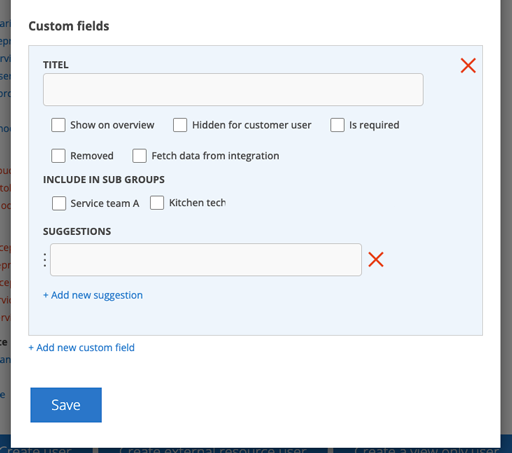
Create Custom fields
Create fields for your specific needs. Several settings can be made. Learn more about custom fields.
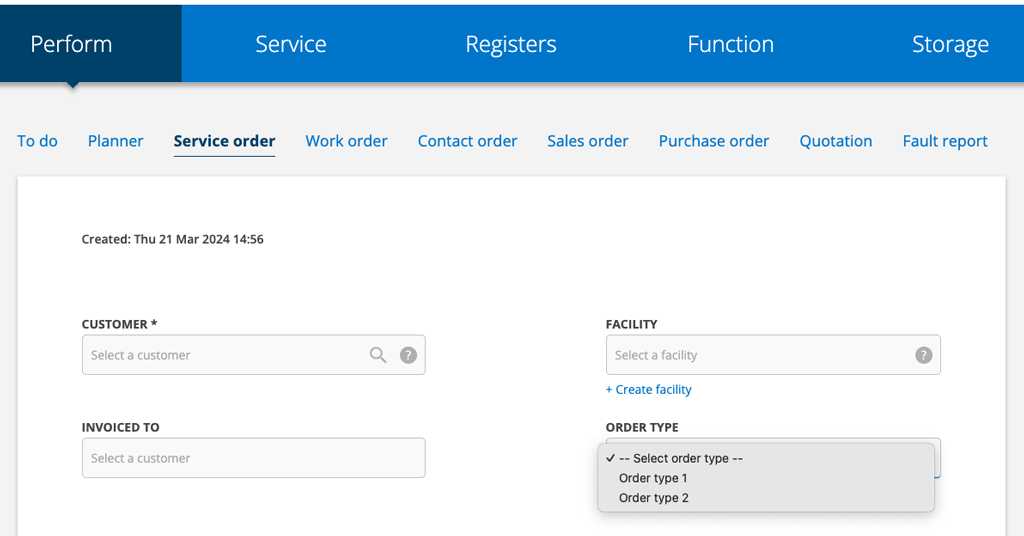
Create order types
Enter a name for the order type. Select the color of the field by clicking on the left “button” (number 1 in the image below). The color is shown as a dot after the type. Box two is the text color and does not need to be set.
You can link the order type to a cost center (number 3).
You can control which of your own print templates will be used depending on the order type. Select a template under “Select a template”(4). This print template has priority over the print template you have chosen to “star”.


To search for order types, use the filter function.
Permissions for users affecting service orders
View, View assigned, Create, Edit, Edit assigned, Delete, Cancel, Assign, Assign to self, Perform service, Perform assigned service, Perform partial, Remove/edit uploaded file, See all custom statuses, Generate invoice

