
Supplier invoices are found in the menu under Function.
Here you upload supplier invoices that you have received as PDFs and can then add them to orders or in a storage and submit the invoices to your financial and accounting system.
If you don’t see the title in the menu, you don’t have permissions for the function. Contact someone who has admin permissions.
Below the search box is the address of your group’s unique “mailbox” that you can provide to suppliers.
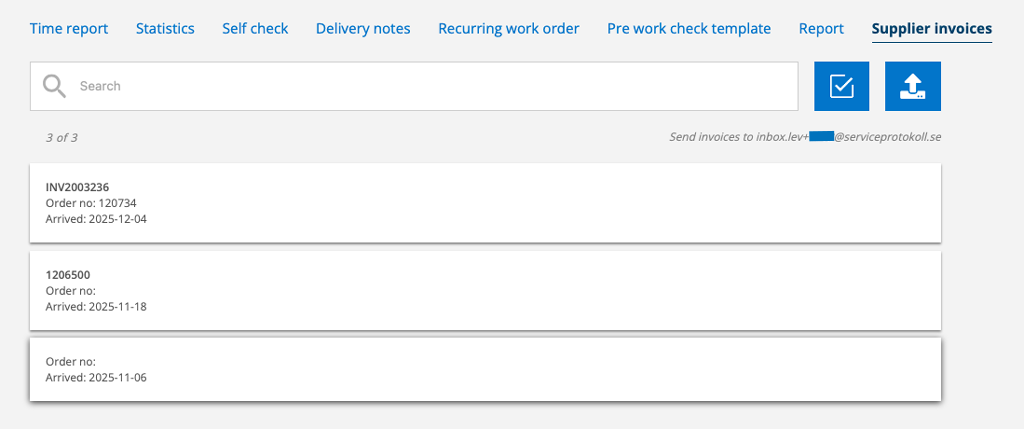
Search supplier invoices

Under the filter symbol, you can choose whether you want to see parsed and canceled invoices.
Upload supplier invoices

Click on the upload symbol to upload invoices (pdf files). Select file from your computer.
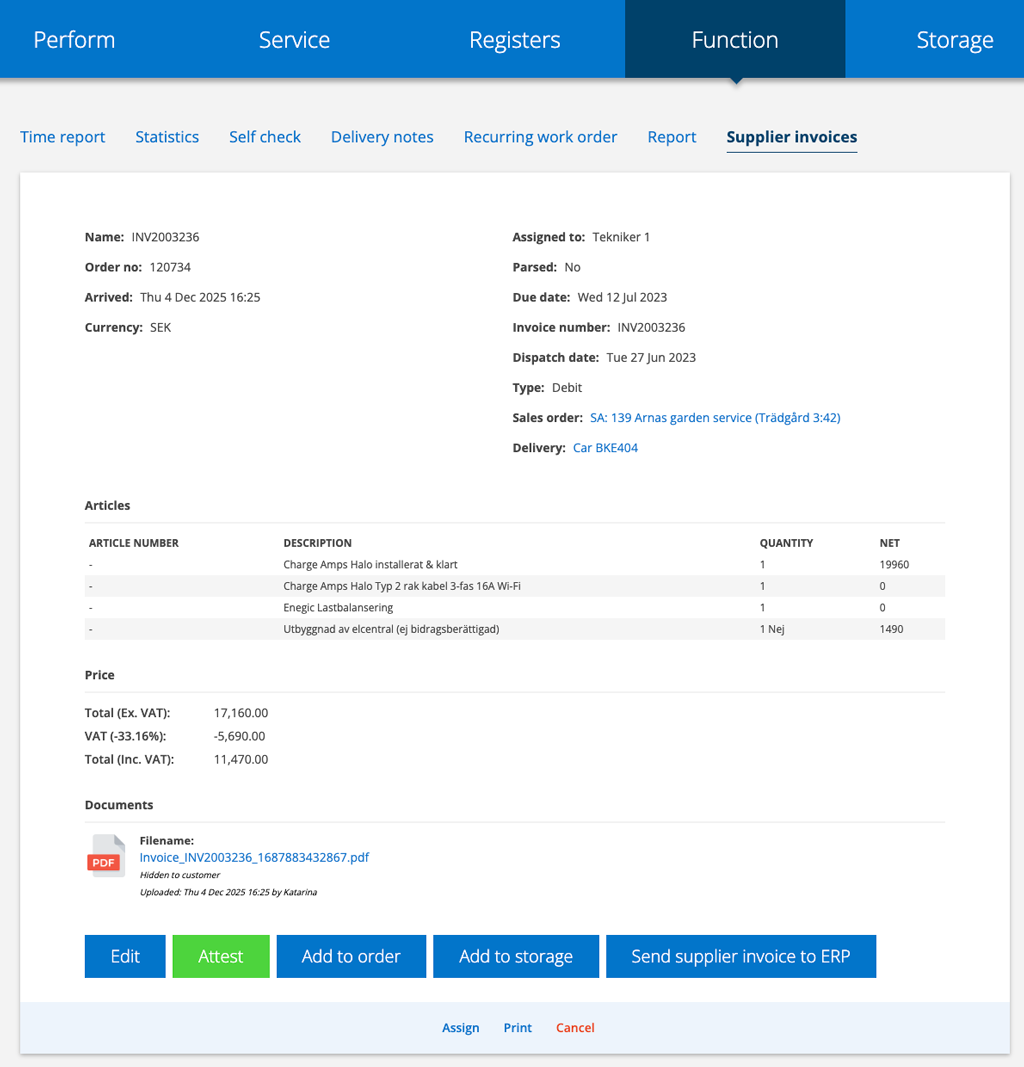
The invoice is read and information such as invoice number (name), date, articles, currency, etc. are entered.
The PDF you uploaded is attached under Documents with information about when it was uploaded and by whom.
Depending on your permissions, you can Edit, Attest, Assign, Add to order, Add to storage and Send supplier invoice to ERP.
Concerning the articles
If the article does not have an article number specified or if the input cannot interpret the article number, a dash is written instead of the number – (dash) on the order.
All lines entered in the field for articles will be loaded. If the supplier has entered a text line, this will also be loaded. In the screenshot above, for example, you see a “No” in the line for an article – here the invoice contained the heading “Green deduction?” with the answer “No”.
Articles from the supplier invoice are not added to your article register.
If you need to change the information on an item, click Edit.
Add to order
If you want to link the supplier invoice to an order, click Add to order. Search and select the order in the popup.
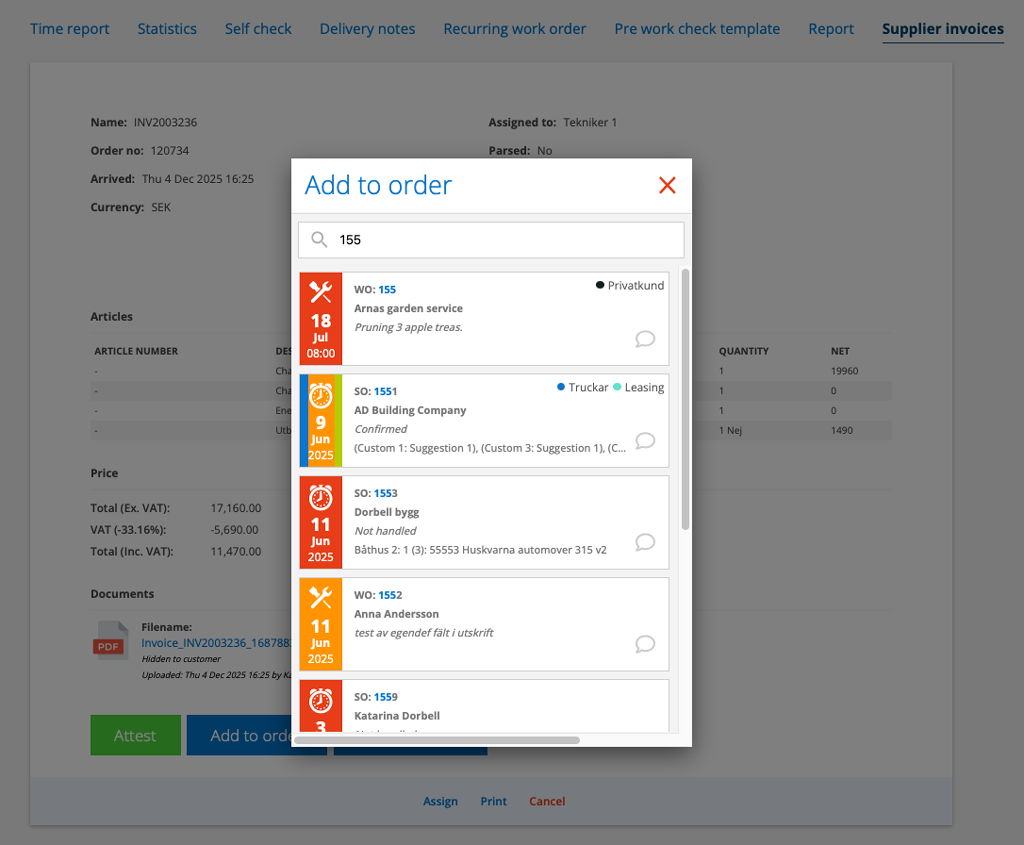
All articles are listed on the order and “Name” (usually an order number from the invoice) is listed under “Uploaded (date) by”. The ability to choose which articles to add to an order is under development.
Information about and a link to the order are displayed in the header.
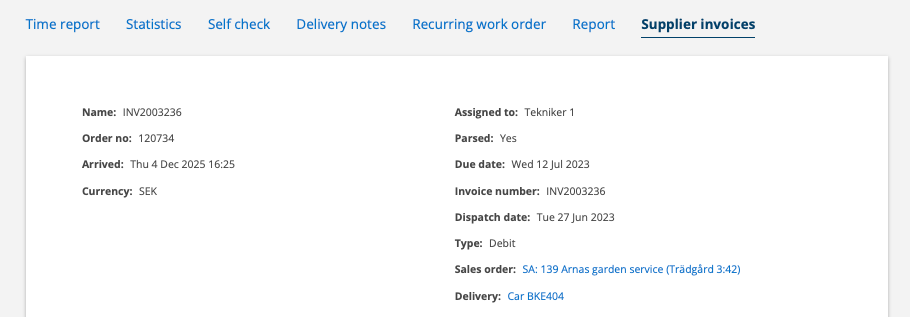
If you have linked to an order and need to change this, you can restore the order. Click Restore.
Storage
If you want to add the articles to your storage, click Add to storage. Select the storage in the popup.
A link to the storage is added under Delivery:. Click on the storage to complete the delivery and possibly remove items that should not be placed in the storage.
Generate invoice
Click the Send supplier invoice to ERP button to submit the supplier invoice to the accounting program.
Permissions Supplier invoice
Admin permissions are required to set permissions to a user. Read more about how to set permissions.

