
26-07-02 – News in the Planner and Quotation, emergency contact, picture of contact person.
Show time utilization
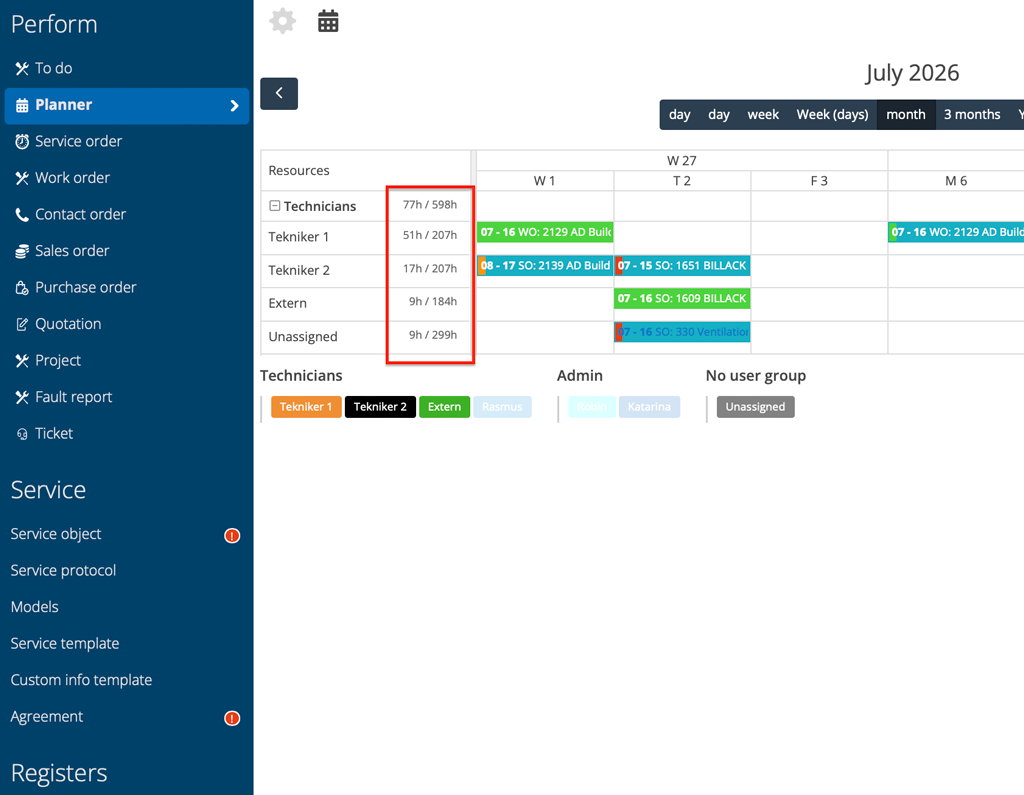
In the Planner, you can now see each user’s number of possible working hours. The number is taken from the user’s working hours setting and follows your selected view – month, week, day.
At the top you see the total time for the entire workgroup. To the right of each user you see the number of booked hours/total number of possible hours for that user.
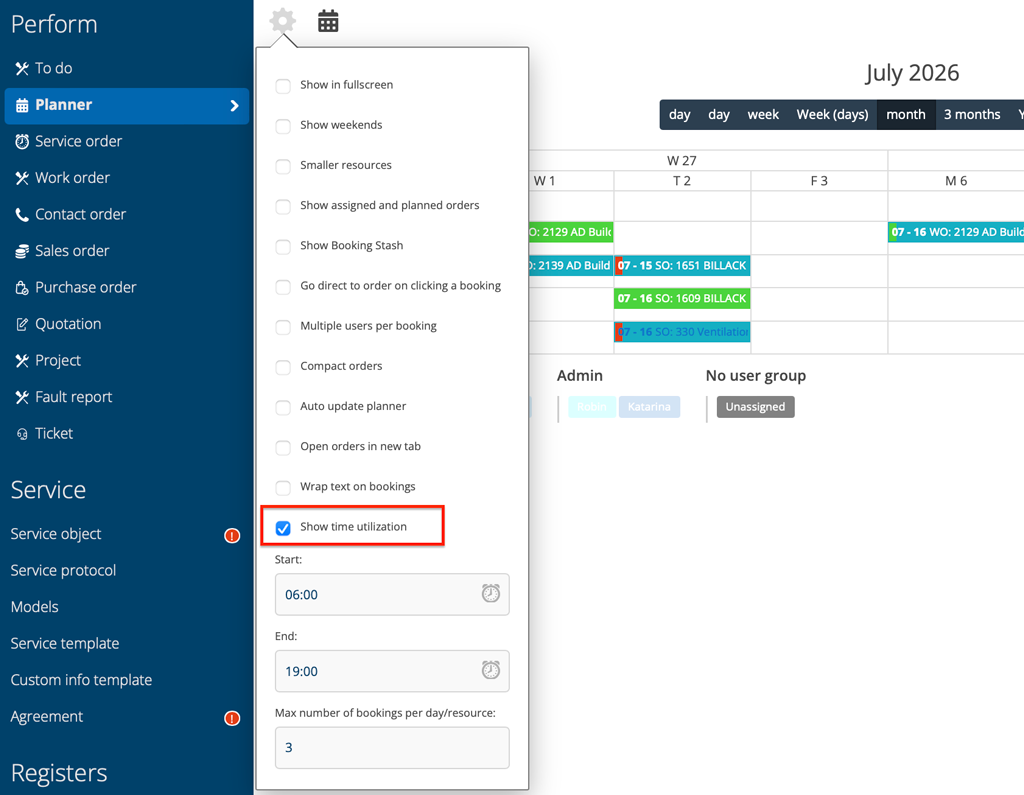
To activate the function, click on the gear in the planner and select the “Show time utilization” option (see image 2).
Booking stash in Calendar view
We added the booking stash to the Calendar view.
The booking stash is now also displayed in the Calendar. To activate the booking stash, click on the gear wheel and mark “Show booking stash” and the stash will appear in both Resource and Calendar.
Contact person image
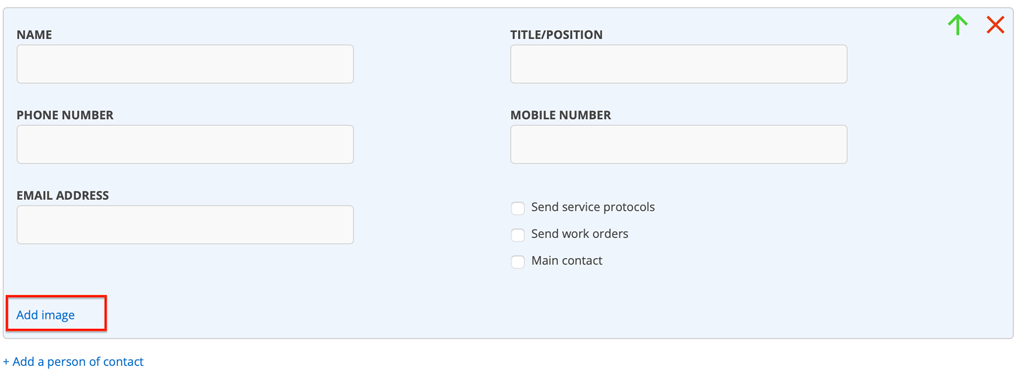
On a customer card, you can upload photos of contact persons. Select Edit and locate the contact person. Click the Add image link (see image 3) to upload the photo.
Click Save Changes.
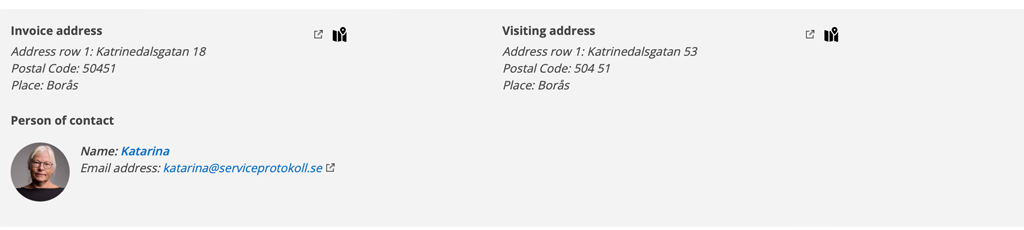
The photo appears to the left of the contact information.
Reorder articles on quote
Did the articles not appear in the correct order on the quote? Now you can change the order by dragging the three dots in front of the article.
Emergency contact information
In User Settings you can now add information on who to contact in case of emergency – name and phone number. The setting requires admin permissons. Go to Group Settings – click on a user – select Edit user settings.
Regarding syncing the article’s default supplier from Fortnox to Service Protocol
When an article is synced from Fortnox, the supplier that is selected as the default supplier on the article in Fortnox is also retrieved. If the supplier already exists in Service Protocol, it is linked to the article. If it does not already exist, it is created with basic information and then linked to the article.
The supplier is marked as the main supplier on the article in the Service Protocol. If the article previously had a different main supplier, that marking is removed, so that the main supplier reflects the default supplier in Fortnox.
Why only the default supplier?
Fortnox only exposes the article’s default supplier via the API, not the entire list of all suppliers that can be on the article. Therefore, we can, at this time, only sync with the default supplier.

