
26-09-25 – Map in the planner, select info in article lists, news for fault reporting and several new settings options
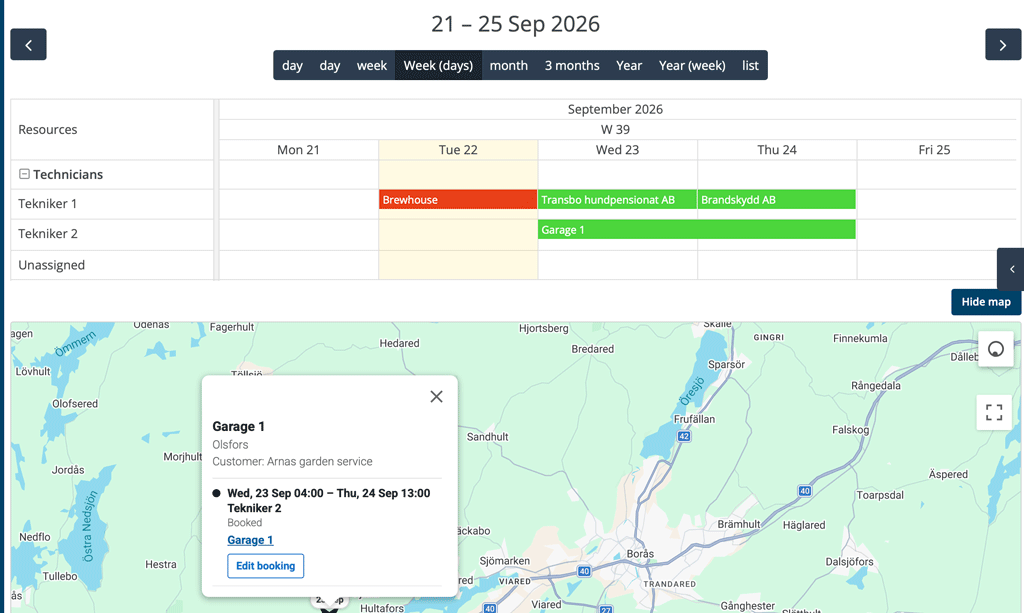
The Planner has got a map view!
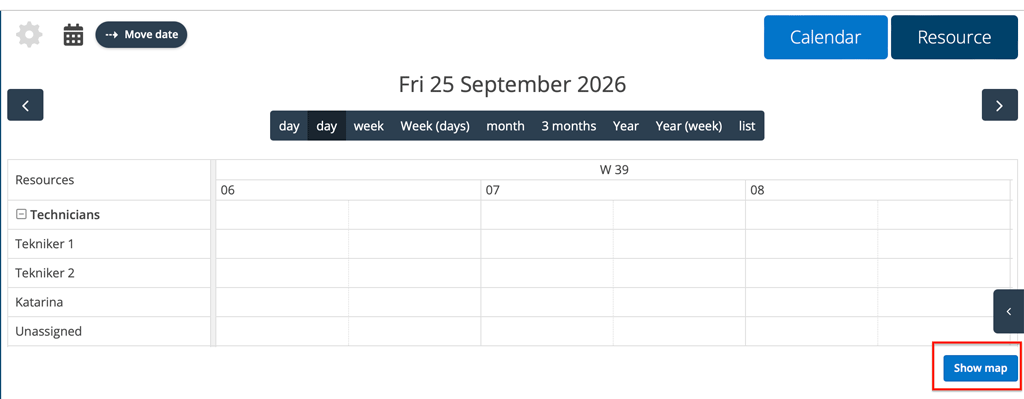
Click the Show Map button. You will find the button on the far right below the list of days and resources (see image 1).
When you click on the arrow that marks a booking and location, a box opens with more information about the location and technician, with a link to the order and the option to change the booking.

New option to customize when adding an article
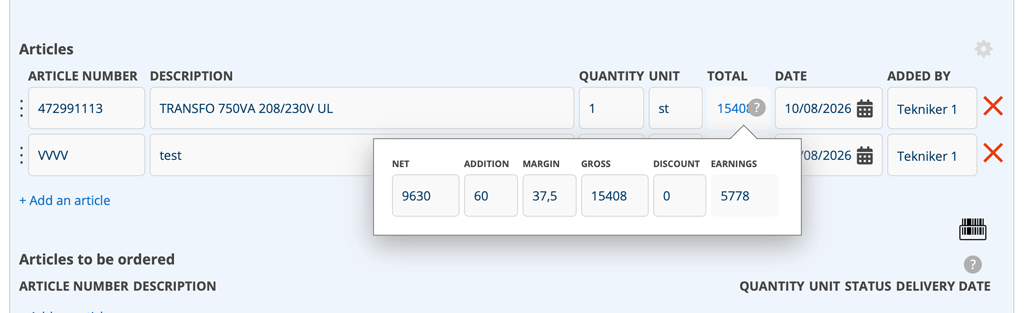
You can now customize what information about an article you want to see when you add it to an order. The feature is available in Edit mode. The detail view is not affected by your Edit mode settings, nor when you use “quick add” articles.
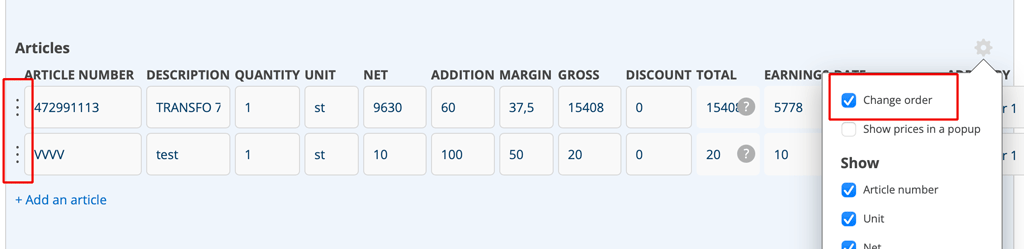
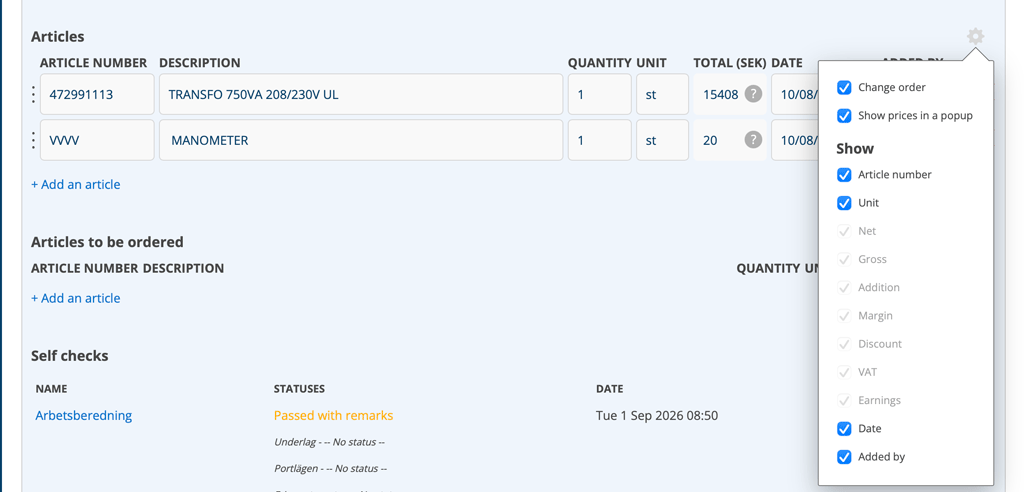
Click on the cog wheel to select settings (see image 3).
This is what you can do:
- sort rows by dragging the three dots (“Change order” – see image 4).
- choose whether the prices should be displayed in a popup or with the information in one line
- choose which columns to display
Your settings are saved immediately and used in all item lists in Edit mode regardless of where you made the setting, i.e. the setting you made in a work order is also used in service orders, service protocols, sales orders and quotes.
What prices would you like to see?
To change which prices are displayed, make sure “Show prices in a popup” is unchecked. Then select the price information you want under Show.
If you choose to display prices in a popup, you cannot change which prices are displayed, but you can change information such as date, added by, etc.
Conditions
You must have the pricing permission. However, without that permission, you can still make some settings that do not affect pricing.
Fault report
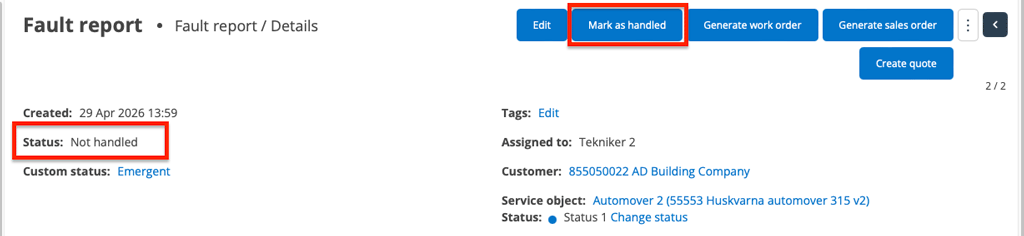
Fault reports now receive serial numbers in the same serial order as other words. However, already created fault reports do not receive numbers.
We have also added a separate status for “handled.” The status is set automatically when a quote, work order, or sales order is created, or manually by you by clicking Mark as handled.
Sales order
Now you can duplicate a sales order in the same way as a work order. You will get all customer details, the connection to any agreement, status information, articles, etc.
New settings
Changing settings requires admin permissions.
Quotation setting – List settings: Sort on serial number by default
This setting option is also available on work orders, service orders, and contact orders.
Article Settings – View Settings: Show popup when articles is added
This setting is selected by default. Uncheck this to not display the popup where you fill in information about a new articles to be added to the article register.
Supplier Invoice Settings – View Settings: Auto create missing suppliers
If a supplier is missing from the supplier register, the supplier is automatically added. The supplier information is retrieved from the invoice.
Email Settings: Booking confirmations can now have named, separate templates for SMS and email, including their own email subject. You can create multiple templates for both email and SMS.

