
Under Deliveries, you make and view inbound and outbound deliveries in your storages.
A delivery can be made in several different ways:
- by clicking the +sign under Deliveries
- through a Purchase order
- through a Supplier Invoice
Inbound delivery
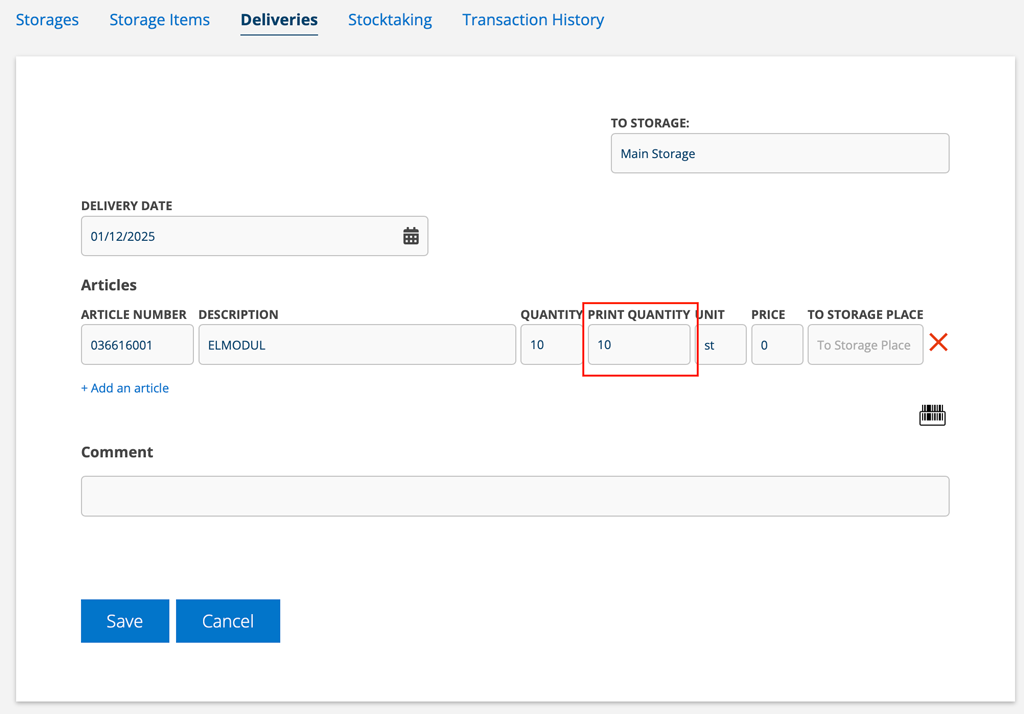
Click on the + sign to make a new delivery.
- Under To storage, select which storage the delivery should be made to.
- If the From storage field appears, leave it blank.
- Select articles to be put into the storage. If you see the barcode symbol, you can use a barcode reader (scanner with Bluetooth connection) to add an article.
- If you have activated the storage setting “Show print quantity on deliveries”, you may specify how many copies of labels to be printed in the column PRINT AMOUNT.
- If the articles are to have a storage location, fill it in. If the article is already in a storage location, it is already filled in.
- You can add a comment regarding the delivery.
- Save.
- Sign. The inbound delivery is performed.
Inbound via Purchase order
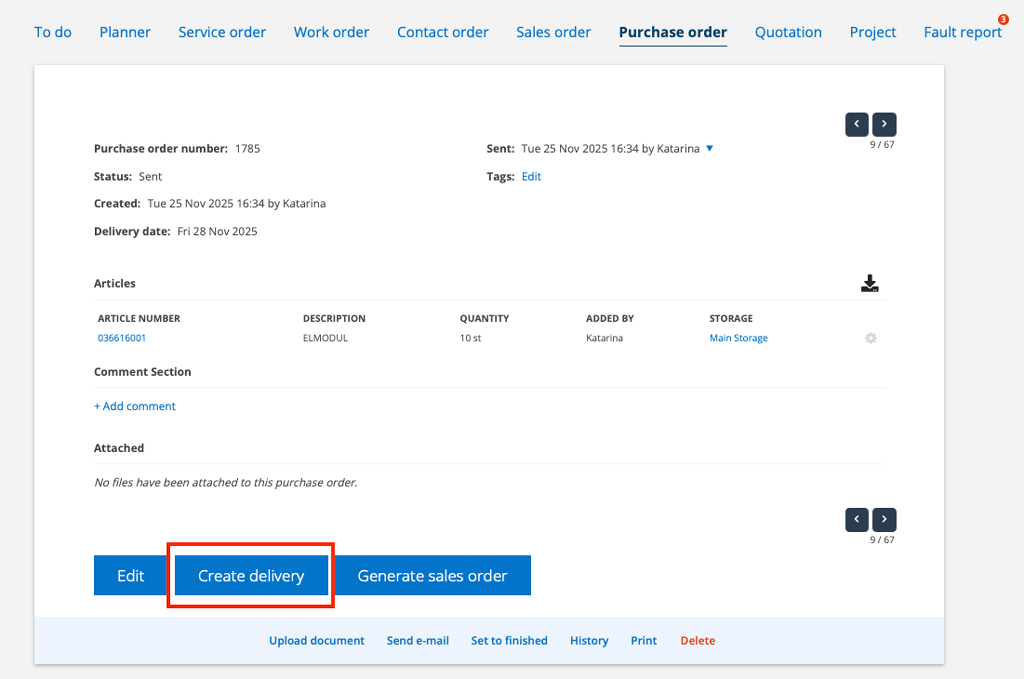
Open the purchase order. Click the Create delivery button at the bottom of the page.
Select the articles you want to add to the storage and to which storage and place (if applicable) they should be received.
Inbound delivery via supplier invoice
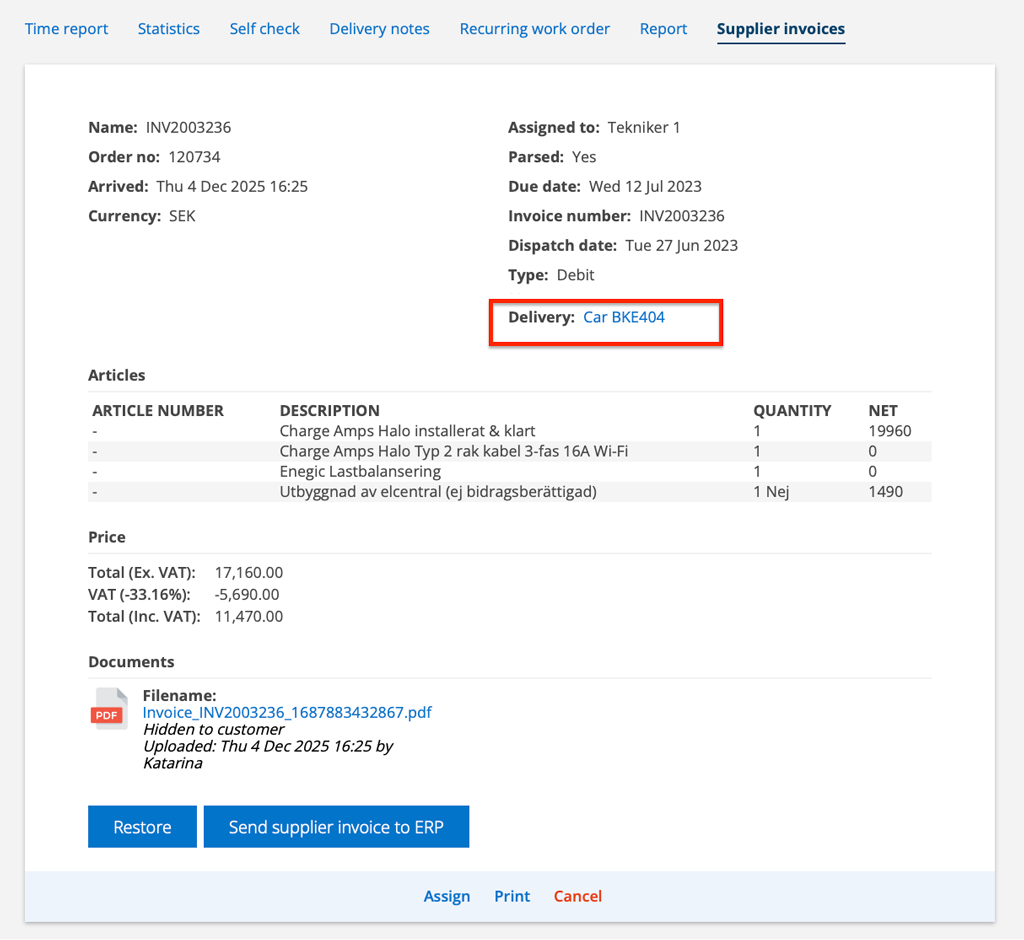
On the supplier invoice, click Add to storage. A popup will open where you select storage.

A link to the storage is added under the heading Delivery:. Click on the storage to complete the delivery and possibly remove articles that should not be placed in the storage.
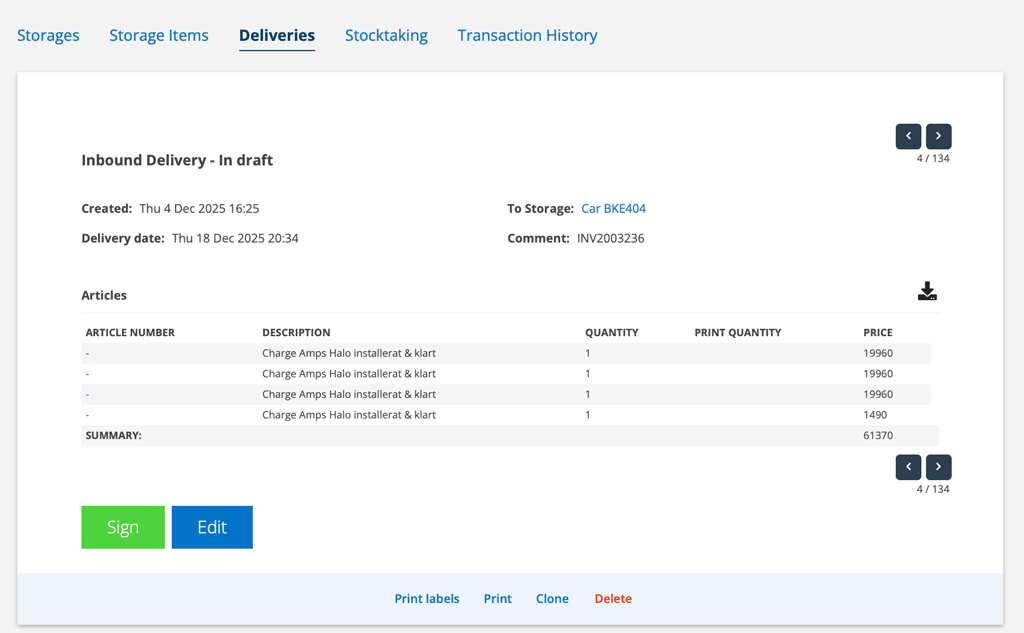
To edit the inbound delivery, click Edit. When finished, sign the delivery
Move articles between storages – Outbound delivery
When moving articles between storages, fill in the From storage and To storage fields. If the article is in the “From storage”, you will see the number in that storage when you search for the article. See image below.
Click the +-sign to make an outgoing delivery
- Under From storage, select which storage the delivery should be made from.
- Select To storage.
- Select articles to be delivered. If you see the barcode symbol, you can use a barcode reader (scanner with Bluetooth connection) to add an article.
- Fill in the quantity, number of labels if you want to print them, unit if it is not already filled in and any storage place.
- Add, if any, a comment regarding the delivery.
- Click Save.
- Sign the delivery.
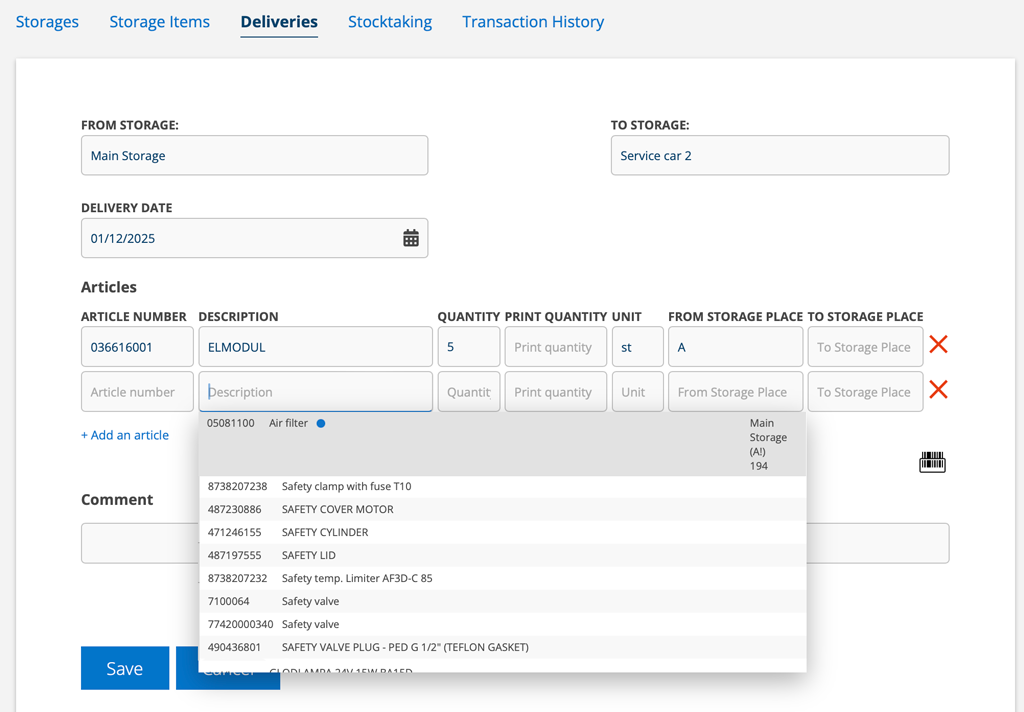
Outbound delivery
Click on the + sign to make a delivery if the articles should no longer be in your storage.
If you have replaced an article that is in stock, you need to make a delivery of the replaced article. The stock balance is not transferred to the replacement article.- Under From storage, select which storage the delivery should be made from.
- Leave the field To storage empty.
- Select articles to be delivered. If you see the barcode symbol, you can use a barcode reader (scanner with Bluetooth connection) to add an article.
- Add, if any, a comment regarding the delivery.
- Click Save.
- Sign the delivery.
Concerning Visma integration
Manual deliveries created in Visma are not synced, however deliveries in our storage system are synced with Visma. So always make deliveries in our storage system.

