
See also:
- Tags for address, contact and signature. All combinations with the prefix Delivery, Facility, Customer, InvoicedTo or no prefix at all can be used.
- Tags for articles
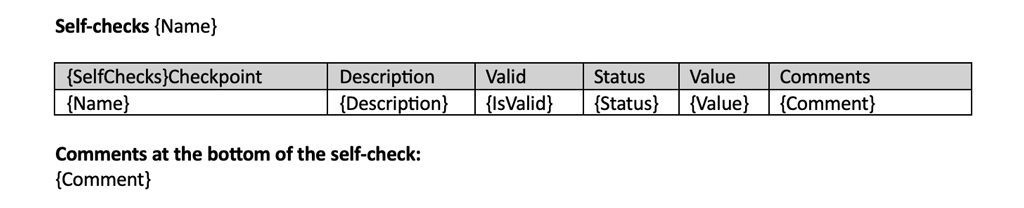
- Here you find tags for self-checks. Tags for self-checks are placed in their own table.
If the work order has self-checks, the first self-check can fill in the {SerialNumber}, {Name}, and {Comment} for the service object. - Tags for price and VAT
- Tags for timer
| Tag | Gives this information |
|---|---|
| {OrderNo} | Order number |
| {Customer} {CustomerNo}, {CustomerOrgNo}, {CustomerTags}, {CustomerOrderNo}, {PhoneNo}, {InvoiceEmail}, {CostCenter} | Customer and customer details, customer number, organization number, tags, customer order number … |
| {IntegrationReference} | Integration reference |
| {DefaultInterest}, {PaymentTerms} | Default interest and payment terms |
| {Seller} | Sales person |
| {Quote}, {Offer} | Quote linked to the order |
| {InvoicedTo} {InvoicedToCustomerNo} | Name of customer invoiced Customer number for the invoice customer |
| {Facility} {FacilityTags} | Facility and tags set on the facility |
| {Created} | Date created |
| {CreatedBy} | Created by |
| {CreatedByEmail} | Email to the person that created the order |
| {OrderDate}, {DeliveryDate}, {PlannedDate}, {DisplayDate}, {Date}, {Today}, {DateSentToERP}, {InvoiceDueDate} | Different date options |
| {CostCenter} | Cost center |
| {Comments} | All comments on the work order |
| {ExternalComments} | External (marked as visible to customer) comments on the work order |
| {InternalComments} | Internal (marked as not visible to customer) comments on the work order |
| {OrderType} | The order type you set in Work Order Settings is displayed. |
| {Assigned}, {UserAssignmentNames} | Assigned |
| {Attachments}, {Images} | Attachments incl. |
| {RequesterName}, {RequesterTitle}, {RequesterEmail}, {RequesterMobilePhoneNo}, {RequesterPhoneNo}, {RequesterPhone} | Information on the requester |
| Section ”Assignment” incl. service objects | |
| {Assignments} {ServiceObject}{ServiceObjectDescription}, {ServiceObjectNextService}, {ServiceObjectNextServiceYear}, {ServiceObjectNextServiceMonth}, {ServiceObjectModel}, {ServiceObjectYear}, {ServiceObjectSerialNumber}, {ServiceObjectMachineNumber}, {ServiceObjectComment}, {ServiceObjectTags}, {ServiceObjectInstallation} {ServiceObjectCustomInfo} with row tags {CustomInfoName} and {CustomInfoValue} {Description} {Error} {Readings} {Date}, {DayOfWeek}, {Description}, {Reading} ———- {Measures} Tags: {Description} {Date} {DayOfWeek} {PerformedByUser} {Images} ——— {Articles} {ArticlesSubtotalPrice} The name of a custom checkpoint can also be used dynamically as {Checkpoint Name} within the assignment. | Create a table per assignment that contains the tag {Assignments}. One row per assignment is created. These tags can be used within the row. Inside the “Assignments” table, create a table for measures {Measures} and one for articles: {Articles} See the next section for article tags. If the work order has self-checks, the first self-check can also fill in {SerialNumber}, {Name}, and {Comment}. See how to build the table in the example template that you will find at the bottom of this page under Article Attachments. |
| Custom fields | |
| Work Order Custom Fields: {Field Label} Facility: {FacilityField Label} Customer: {CustomerField Label} Invoice Customer: {InvoicedToField Label} Service Object Custom Fields, Custom Info, and Counters: {ServiceObjectNameOrLabel} | Replace “Field Label” or “NameOrLabel” with the name you gave the custom field. Just enter the name exactly as it is created. Learn more about custom fields. |
| Tags for the Articles | |
| {Articles} | See how the table should be built in the example template that you will find at the bottom of this page under Article Attachments. |
| {ArtNo} | Article number |
| {Description} | Description of the article |
| {Unit} | Unit |
| {Amount} | Amount |
| {Discount} | Discount |
| {StoragePlace} | Storage place |
| {AddedBy} | Added by (name) |
| {AddedDate} | date when the article was added |
| {Articles} or {CustomerArticles} | Other time/articles Create a separate table for these independent of the assignment table. Use the tags listed here, {ArtNo} – {AddedDate}. |
| {OrderTotalTaxReduction} {OrderTotalTaxReduction50%} {OrderTotalTaxReduction30%} | Order total with tax reduction |
| {OrderTotalPriceAfterTaxReduction30%} {OrderTotalPriceAfterTaxReduction50%} | Order total after tax reduction |
| Price | |
| {Price} | Price |
| {TotalPriceIncVat} {OrderTotalPrice} | Price incl. VAT per article/articles Price excl. VAT per article/articles |
| {OrderTotalTaxReduction50%} or {OrderTotalPriceAfterTaxReduction30%} | Total price with tax reduction 50% or 30% |
| {OrderTotalPriceIncVAT} {OrderTotalVAT} {OrderTotalPriceWithVAT25%} {OrderTotalPriceWithVAT20%} {OrderTotalVAT25%} {OrderTotalVAT20%} | Tags total price incl. VAT |
| Tax reduction | |
| {OrderTotalTaxReduction}, {OrderTotalTaxReduction50%}, {OrderTotalTaxReduction30%}, {OrderTotalPriceAfterTaxReduction50%}, {OrderTotalPriceAfterTaxReduction30%} | |
| Currency | |
| {Currency} {CurrencyCode} {PriceUnit} | |
| VAT table | |
| {VatBreakdown}. Row tags: {VatPct}, {Gross}, {Vat}, {GrossIncVat} and {VatBreakdownVatPct}, {VatBreakdownGross}, {VatBreakdownVat}, {VatBreakdownGrossIncVat}. | |
| Signature | |
| {SignatureImage} | Image of the signature |
| {SignatureClarification} | Name of person who signed/Performed by |
| {SignatureDate} | Date of the signing |
| {SignatureIssuer} | Name and date and time of signing, all in one line. Ex: A. Technician 23/09/2024 09:30:48 |
| {CustomerSignatureImage} | Image of the customer signature |
| {CustomerSignatureClarification} | Name clarification of the customer signature |
| {CustomerSignatureDate} | Date of the signing |
| {CustomerSignatureIssuer} | Logged in technician’s name and date and time of signing, all in one line. Ex: A. Technician 23/09/2027 09:31:00 |
| Tags for booking confirmation info | |
| {Bookings} | This is the “main tag” that is needed. Create a table with two rows where you put the tag {Bookings} in the top row. In the bottom row, put any optional tags listed here. |
| {User} | The name of the person booked at the job |
| {StartDayOfWeek} | Name of weekday printed + start date: e.g. Friday 2025-10-22 |
| {Start}, {StartTime} | Start date |
| {EndDayOfWeek} | Name of weekday printed + end date |
| {End}, {EndTime} | End date |
| {Description} | The description you entered when booking |
| {Type} | Booking type |
| [Booking type] | [Booking type] filters on a specific booking type. Replace the text Booking type with the name of your booking type. Just enter the exact names. Note that here it is a different type of bracket – [x] instead of {x} |

