
Admin permissions are required to grant and change permissions for users in the system.
As an administrator, you can manage permissions for your users and your customer users. By setting permissions, you give users the permission to use certain parts of the system. These parts can e.g. be the ability to create and modify objects, or only perform work or service orders.
The only parts of the system that you need to contact us to get permission to use are Service and all functions therein (for those of you who have only selected Work Orders), Statistics, Leek Detection and Klink (a monitoring unit that collects data from your units via the internet, alarms when set limit values are reached for optimised operation). You can set all others yourself.
To set permissions for customer users, you do not need to have admin permissions, only the permission to add customer users under CUSTOMER. Read more about Customer users here.
How to select permissions
Alternative 1:
- Go to Group settings
- Scroll down to the Users section. Click on the person you want to grant or change permissions for.
- Select Edit permissions.
- Tick the permissions you want the user to have or choose a template that you created and then press Save.
A user marked with (external) means that it has limited permissions.
Alternative 2:
- Go to Register – Users
- Search for and click on the user.
- Click Edit permissions.
- Tick the permissions you want the user to have or choose a template that you created and then press Save.
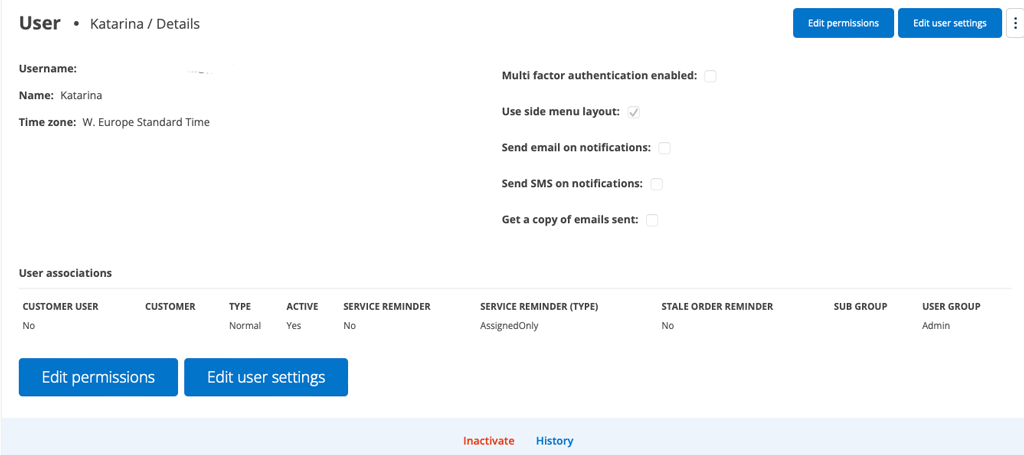
Edit permissions
- Select a user.
- Select the new settings
- Save
Have you selected a user permission template? Your changes to the user will not affect the template.
Only able to Perform?
If you want an employee to only be able to execute a work order and not be able to change anything on a work order, you choose this permission together with View permission. The employee can still add articles and Self-Checks.
INFORMATION ABOUT ALL PERMISSIONS
All permissions are listed and explained here. If you as a technician are missing a permission, you need to contact someone who has admin permissions at your company.
Generally applies:
- “Full” means that all permissions under a section are selected.
- For example, if View is checked, View Assigned is ignored and the user sees all orders. The same applies if there is Edit/Edit Assigned.
- ACTIVITY LOG
- ADMIN
- FACILITY
- WORK ORDER
- ARTICLE REGISTER
- TO-DO
- AGREEMENT
- CHAT
- SELF-CHECK
- FAULT REPORT
- DELIVERY NOTES
- PRE WORK INFO TEMPLATE
- SALES ORDER
- GROUP MODELS
- CUSTOM INFO TEMPLATE
- PURCHASE ORDER
- KLINK (BETA)
- CONTACT ORDER
- CUSTOMER
- STORAGE
- SUPPLIERS
- SUPPLIER INVOICES
- LEAK DETECTION (BETA)
- QUOTATION
- PLANNER
- PICK LIST
- PRICING
- PROJECT (BETA)
- QR-VERIFICATION
- DISCOUNT LETTER
- REPORT
- SERVICE
- SERVICE TEMPLATE
- SERVICE OBJECT
- SERVICE PROTOCOL
- STATISTICS
- TIME REPORT
- ÄRENDE (BETA)
- OTHER

